Using CrossModel Workspaces
Organize your work using different workspaces
CrossModel runs in the cloud, so there is nothing to install. Everything happens in your browser, and your work lives in a workspace.
Two terms are worth separating up front, because the interface uses both:
- A workspace is the persistent environment where your modeling work is stored. It keeps existing whether or not you are using it.
- A session is a running instance of a workspace - the actual CrossModel application, started when you need it and stopped when you are done.
Signing in
Go to app.crossmodel.cloud. The entry page offers two routes side by side:
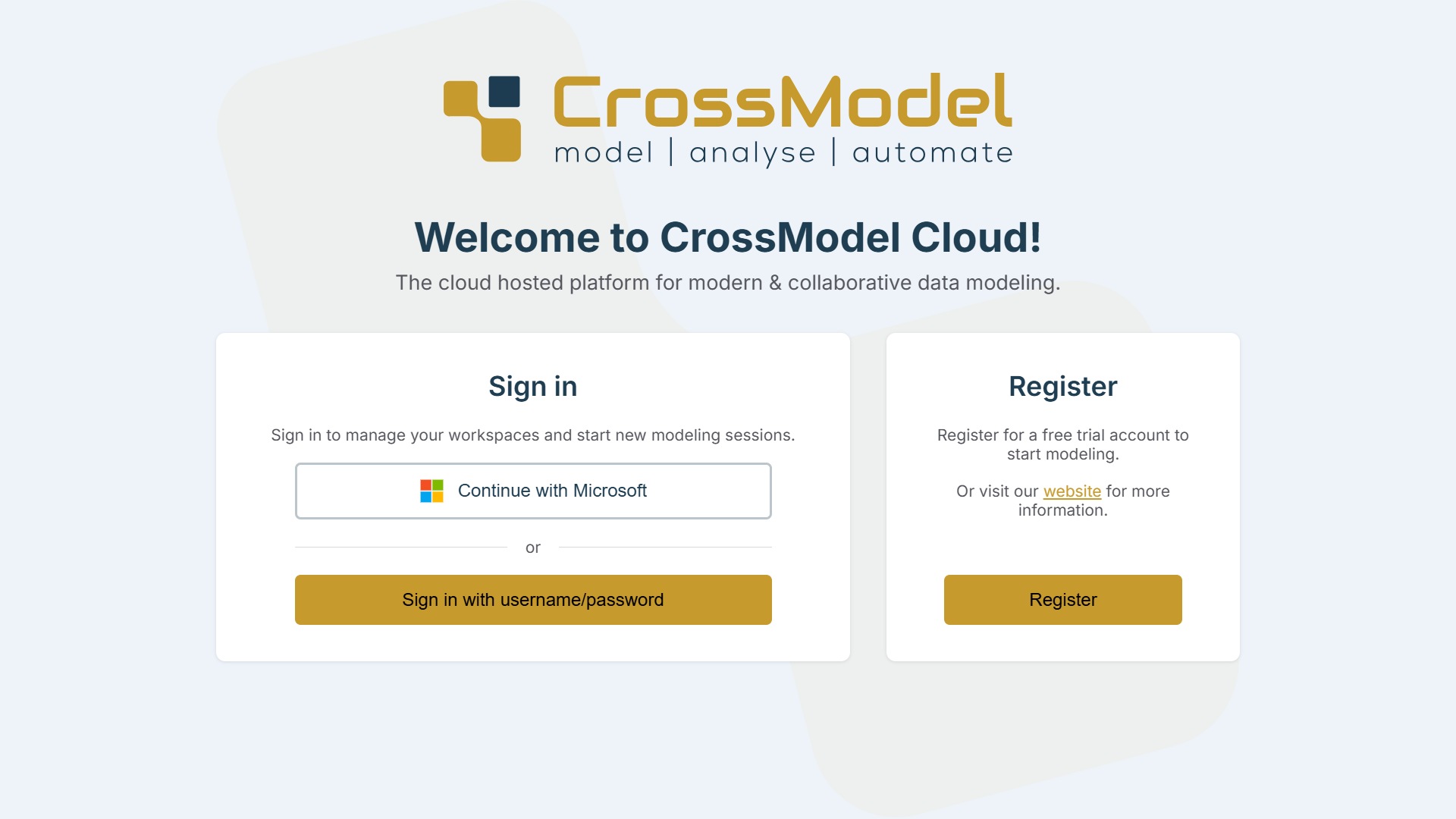
- Sign in - either Continue with Microsoft to use your Microsoft 365 account, or Sign in with username/password for a CrossModel account.
- Register - create a free trial account.
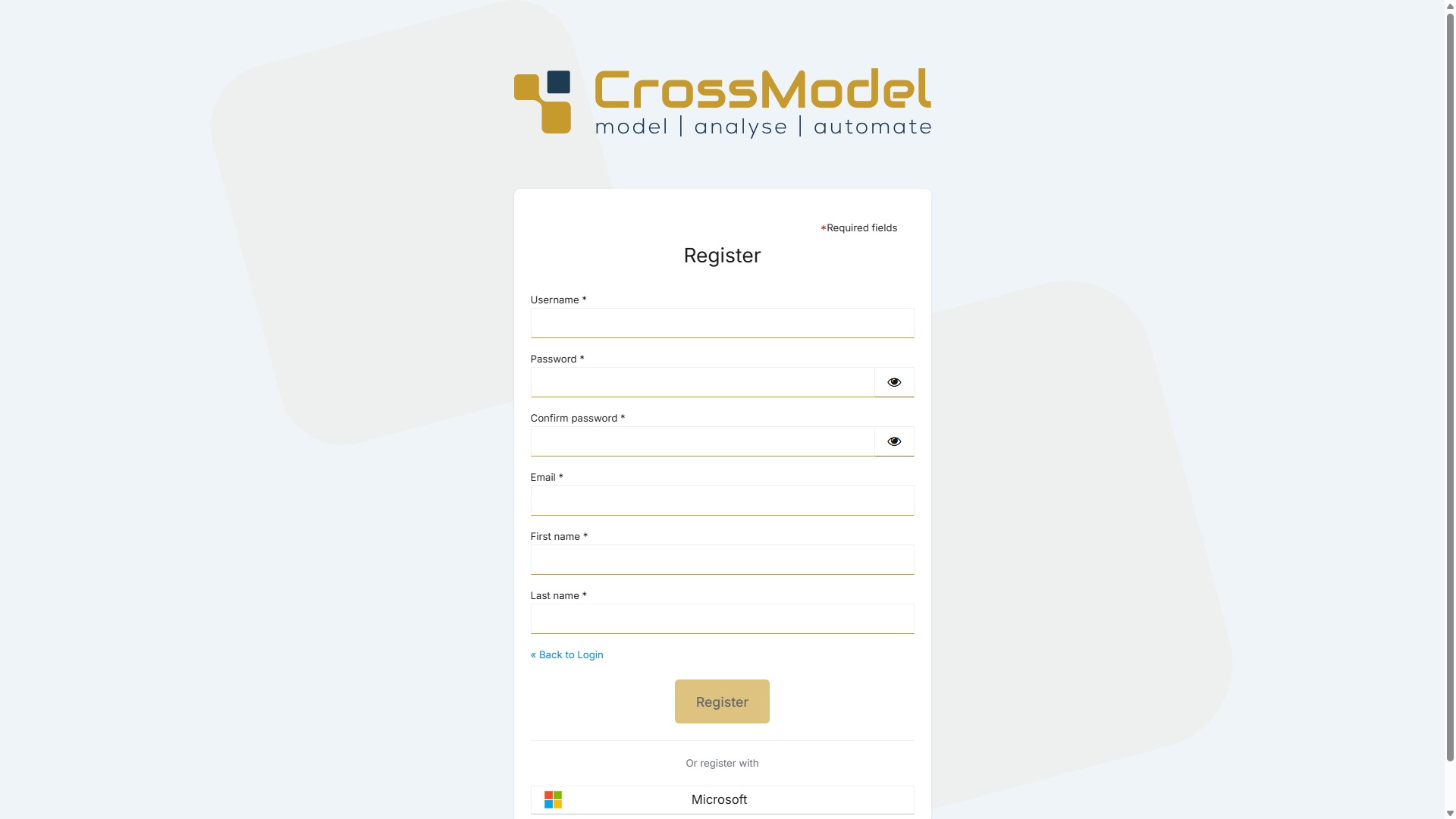
Pressing Register takes you to the registration form. Fill in a username, password, email and your name - or skip all of that and use Or register with → Microsoft to sign up with your Microsoft 365 account:
The workspace overview
After signing in you land on the workspace overview. This is where you manage every workspace you own, and it is the page you return to whenever you want to start or stop work.
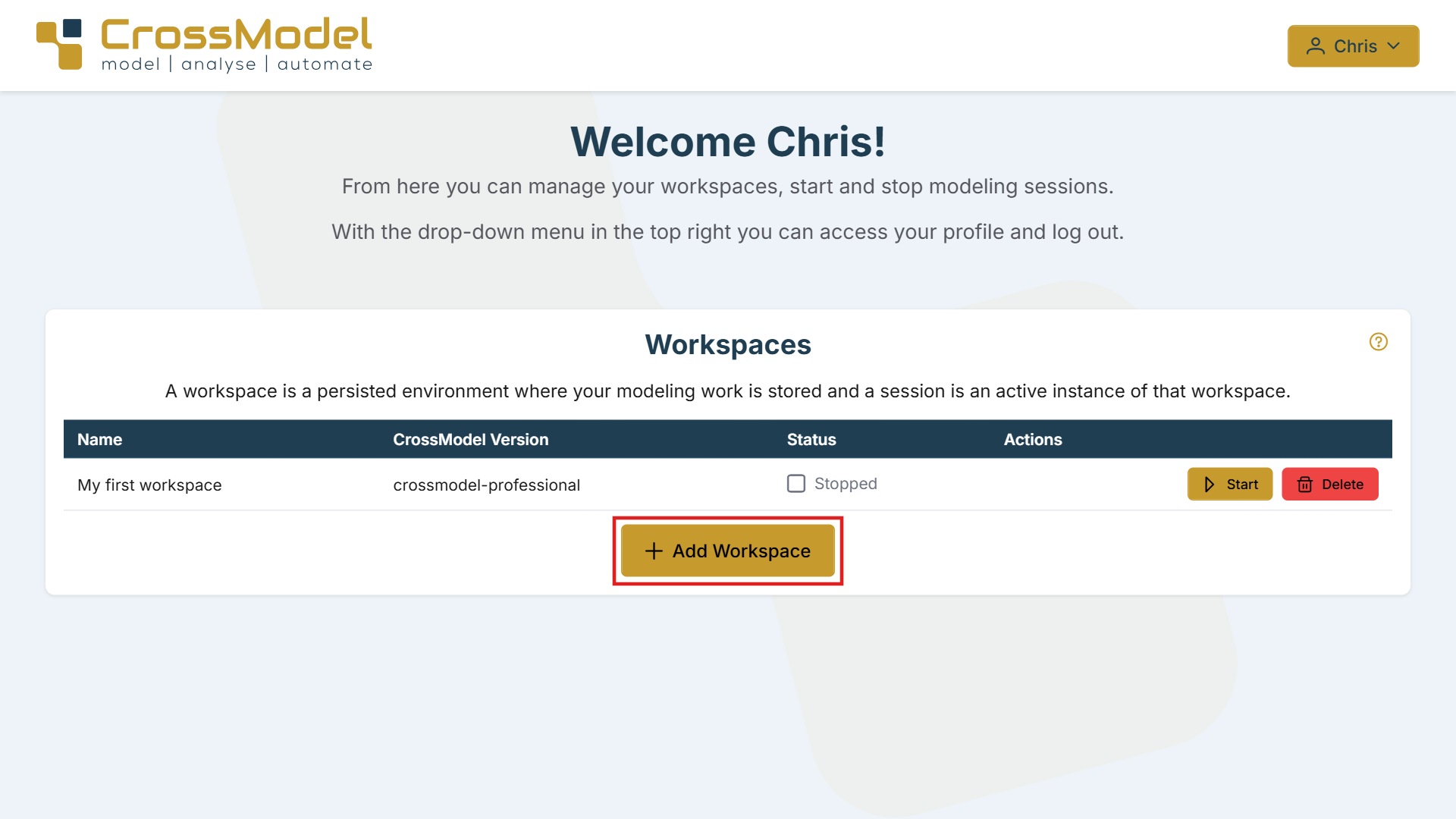
Having more than one workspace lets you work on different projects - or different features within a project - in parallel, without switching back and forth.
The menu in the top right gives you access to your profile and to log out.
Creating a workspace
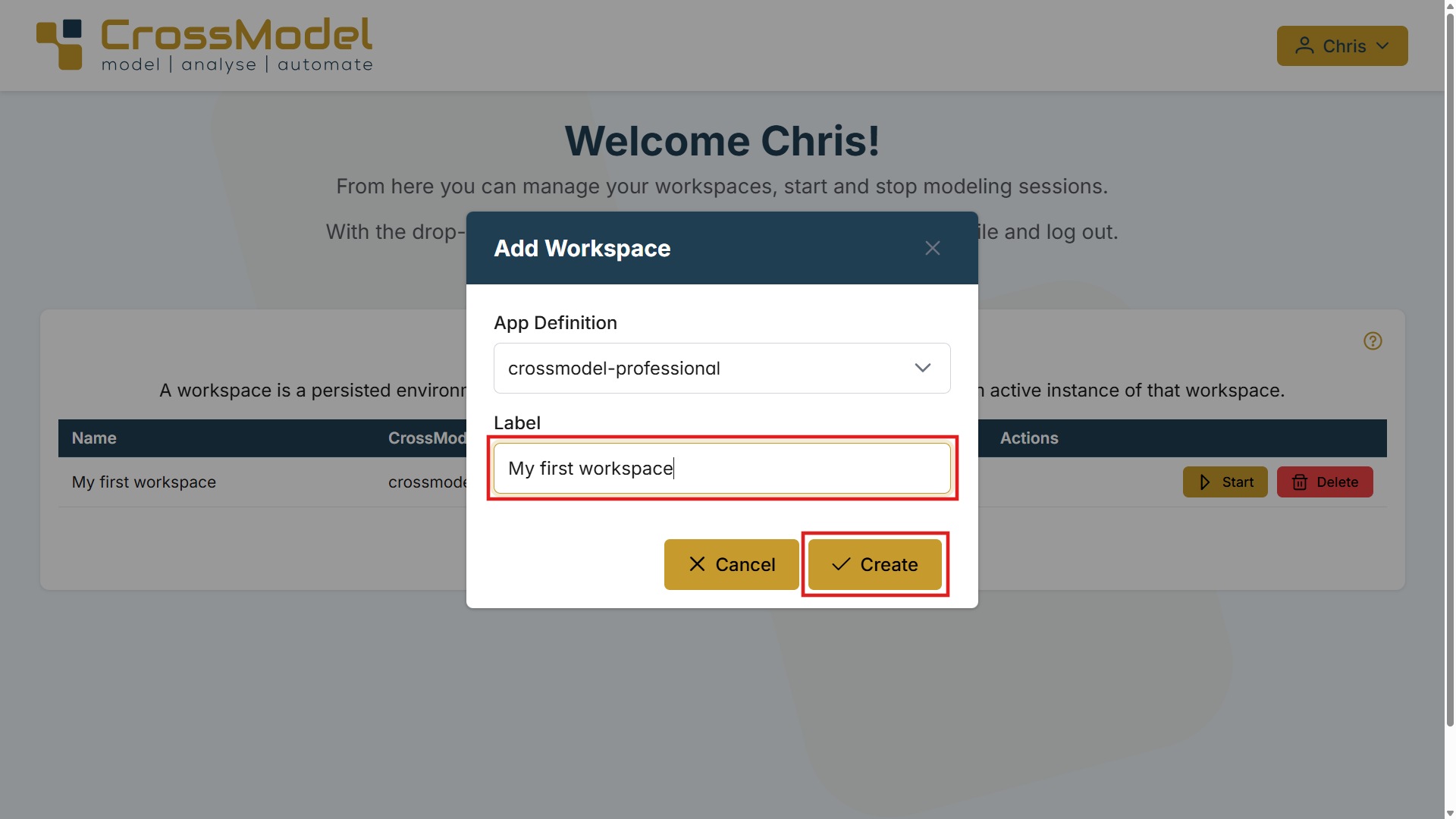
Press Add Workspace and fill in the dialog:
| Field | What to enter |
|---|---|
| App Definition | The CrossModel edition to run. Normally crossmodel-professional. |
| Label | A name you will recognise later, for example My first workspace. |
Press Create and the workspace appears in the overview with the status Stopped:
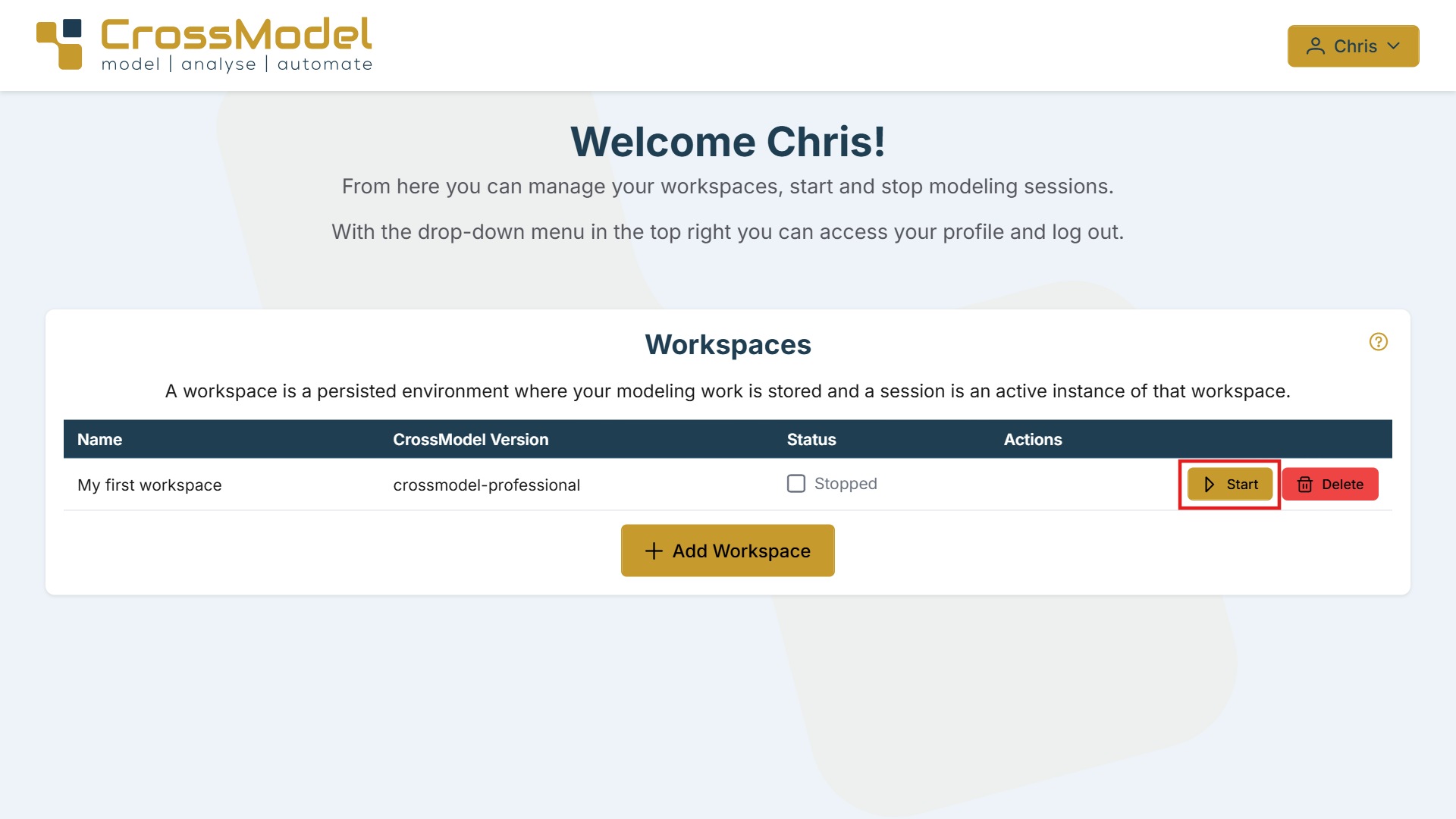
Each row shows the workspace name, the CrossModel version it runs, its status, and the actions available.
Starting and stopping a session
Press Start. The status changes to Starting while CrossModel spins up your session - this takes a moment the first time - and then becomes Active:
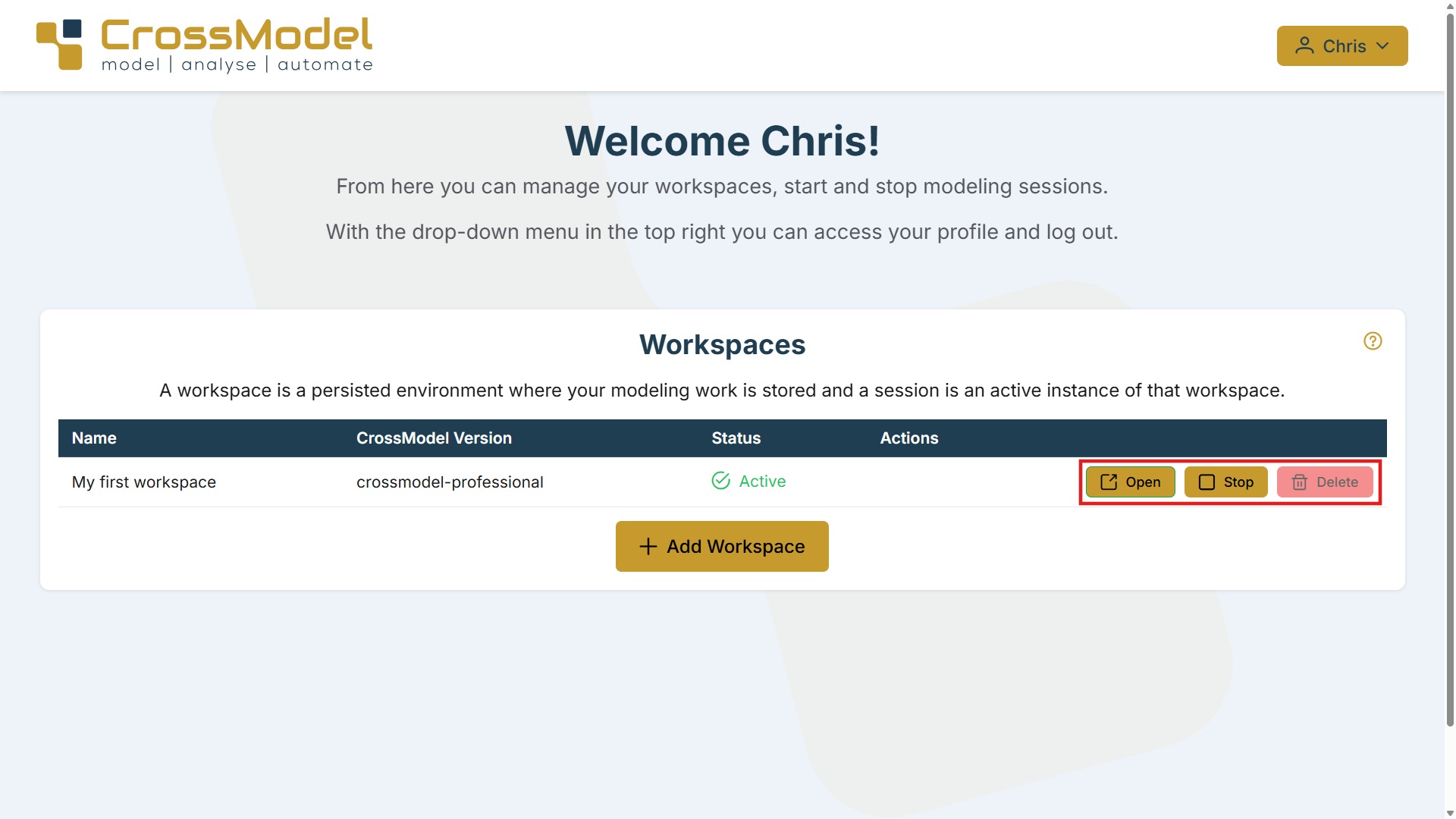
The session opens in a new browser tab. While a workspace is active the actions change:
| Action | What it does |
|---|---|
| Open | Reopen the session tab, if you closed it |
| Stop | Shut the session down. Your work stays in the workspace |
| Delete | Remove the workspace and everything in it - only available when stopped |
Deleting asks you to confirm first, and the warning is accurate: the workspace and all the user data in it are permanently lost, and it cannot be undone. If your models are committed and pushed to Git, that copy survives - the workspace is only the working environment.
Allow popups
Make sure your browser allows popups from crossmodel.cloud, otherwise pressing
Start will not open the new browser tab with your CrossModel session.
Stopping does not lose work
Stopping a session shuts down the running application, not the workspace. Your models are stored in the workspace and are there again the next time you press Start. Stopping a session you are not using frees up resources.
What next?
Once your session is open, CrossModel greets you with the welcome page - the quickest way to get a workspace with real models in it is the Tutorials & Examples cloner there. See CrossModel User Interface.