Getting Started
This guide takes you from creating your CrossModel account to building and saving your first data model. By the end, you'll have a workspace with a simple entity ready to explore further.
Step 1: Create your account
Go to app.crossmodel.cloud and register for an account. After completing the registration you'll be signed in and redirected to the workspace overview.
Step 2: Create your first workspace
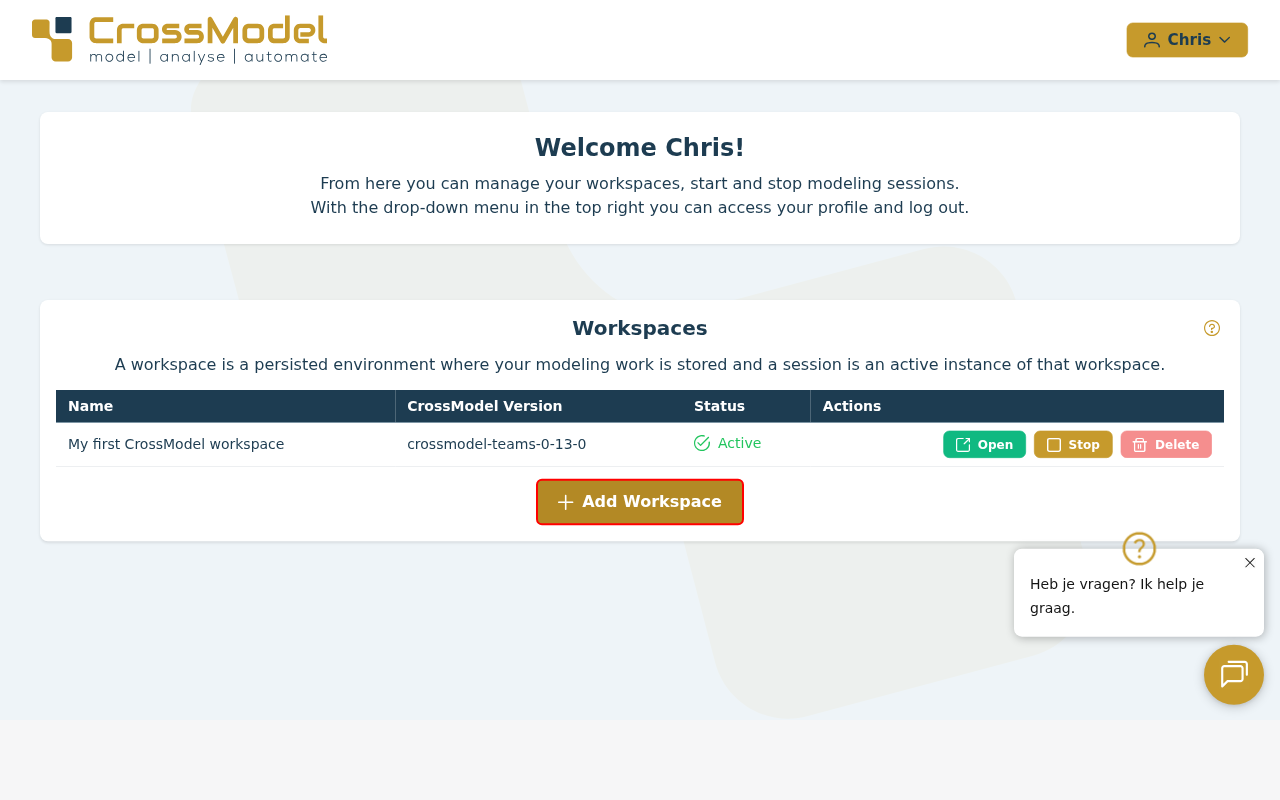
The workspace overview is where you manage all your workspaces. To create your first one:
- Press the Add Workspace button.
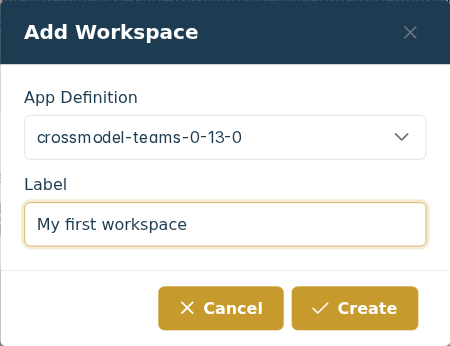
- Select a CrossModel version from the dropdown.
- Enter a label for your workspace, for example
My first workspace. - Press Create.
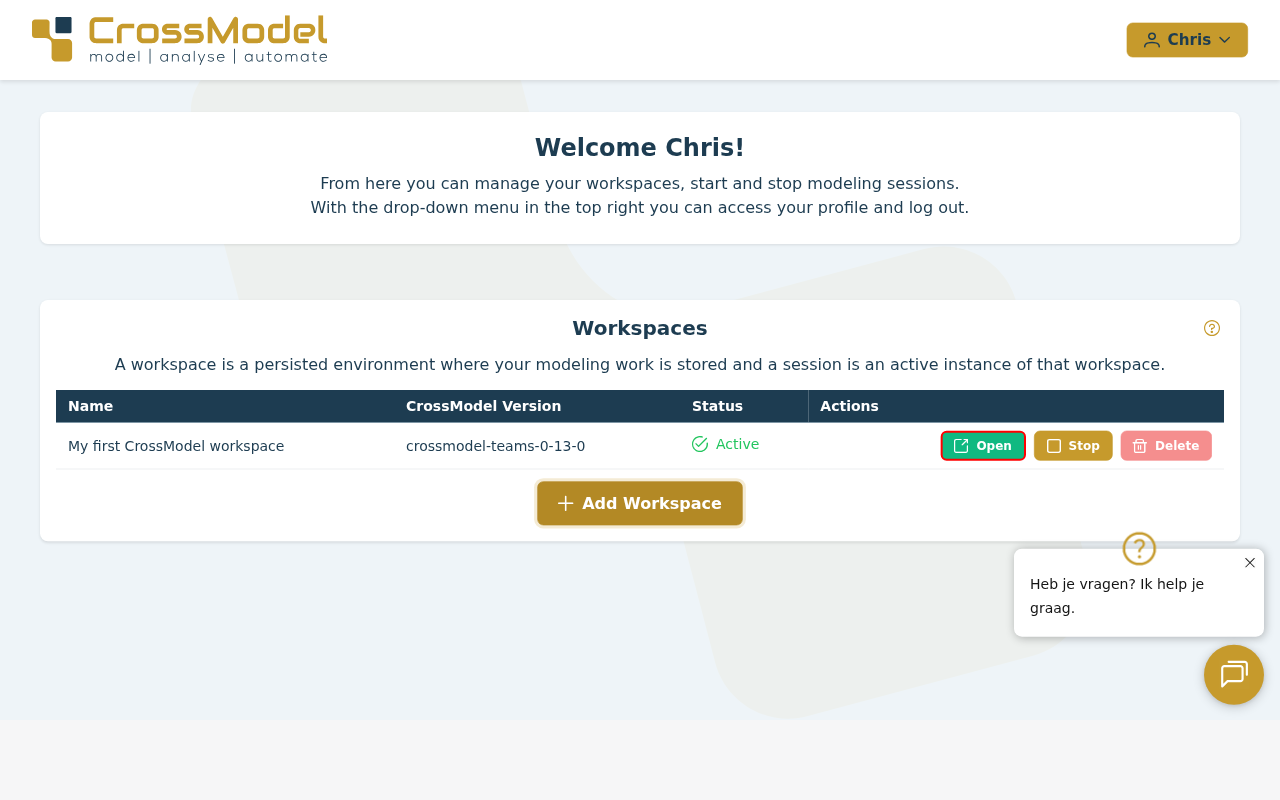
Your workspace now appears in the overview. Press Start to launch it. CrossModel will open in a new browser tab.
Tip
Make sure your browser allows popups from crossmodel.cloud, otherwise the new tab will be blocked.
For more details on workspace management, see Using CrossModel Workspaces.
Step 3: Explore the user interface
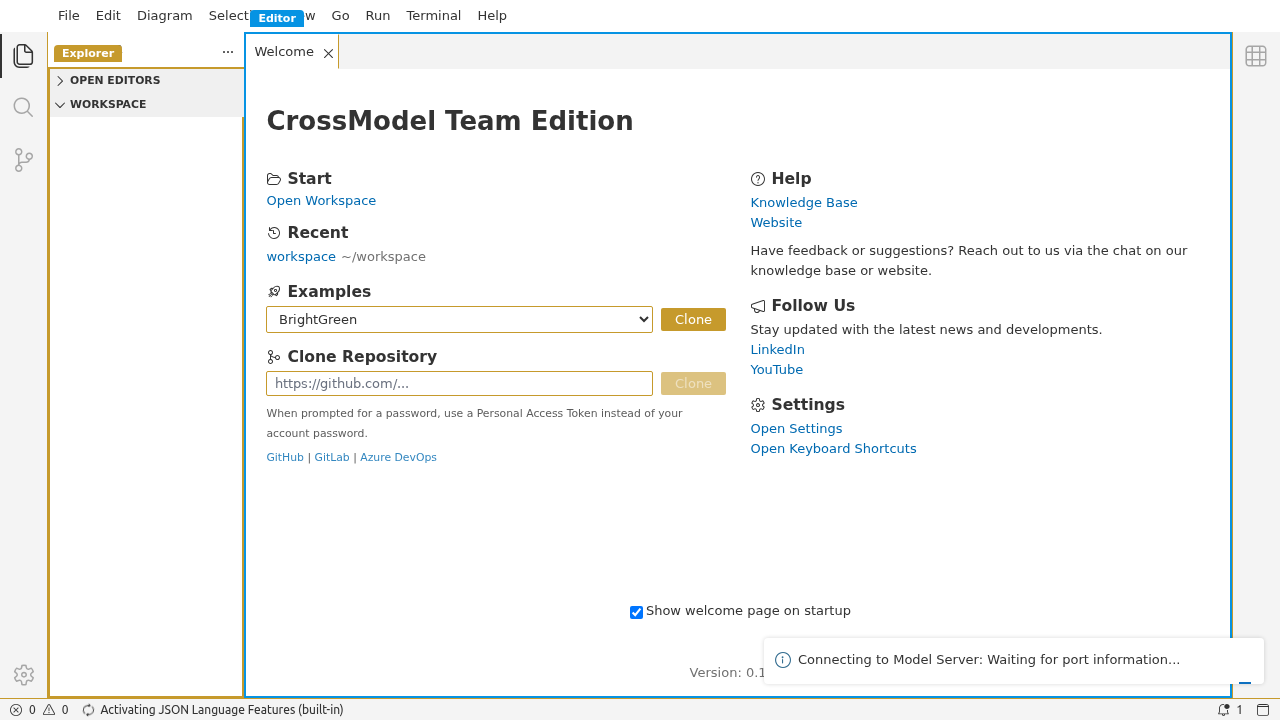
When your workspace opens, you'll see the CrossModel editor. The interface has three main areas:
- Explorer (left) - Navigate your models, entities, diagrams, and other files.
- Editor (center) - Create and edit model elements using the form editor, code editor, or diagram view.
- Properties (right) - View and edit details of the currently selected item.
For a full overview of the interface, see CrossModel User Interface.
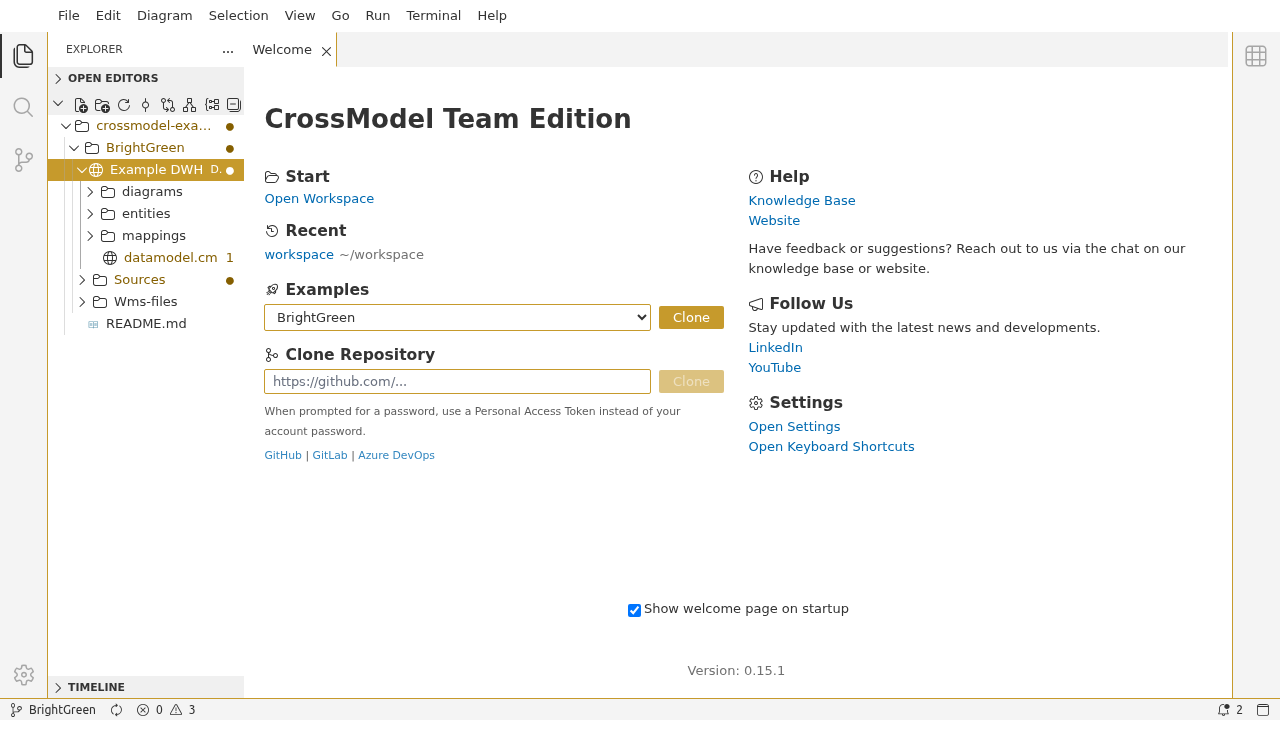
Step 4: Create a data model
A data model is the container for your entities, relationships, and diagrams. To create one:
- In the explorer, select the root folder of your workspace.
- Use the create data model button in the toolbar.
- Enter a name for your model, for example
MyFirstModel. - Press Ctrl+S to save.
Step 5: Create your first entity
Now let's add an entity to your model. An entity represents a real-world object or concept, such as a customer, product, or order.
- In the explorer, select your newly created model.
- Use the create entity button in the toolbar.
-
In the form editor that opens, enter the following details:
Field Value Name CustomerDescription A customer of our business -
Add a few attributes using the attributes section of the form:
Attribute Name Data Type IDInteger NameString EmailString -
Press Ctrl+S to save.
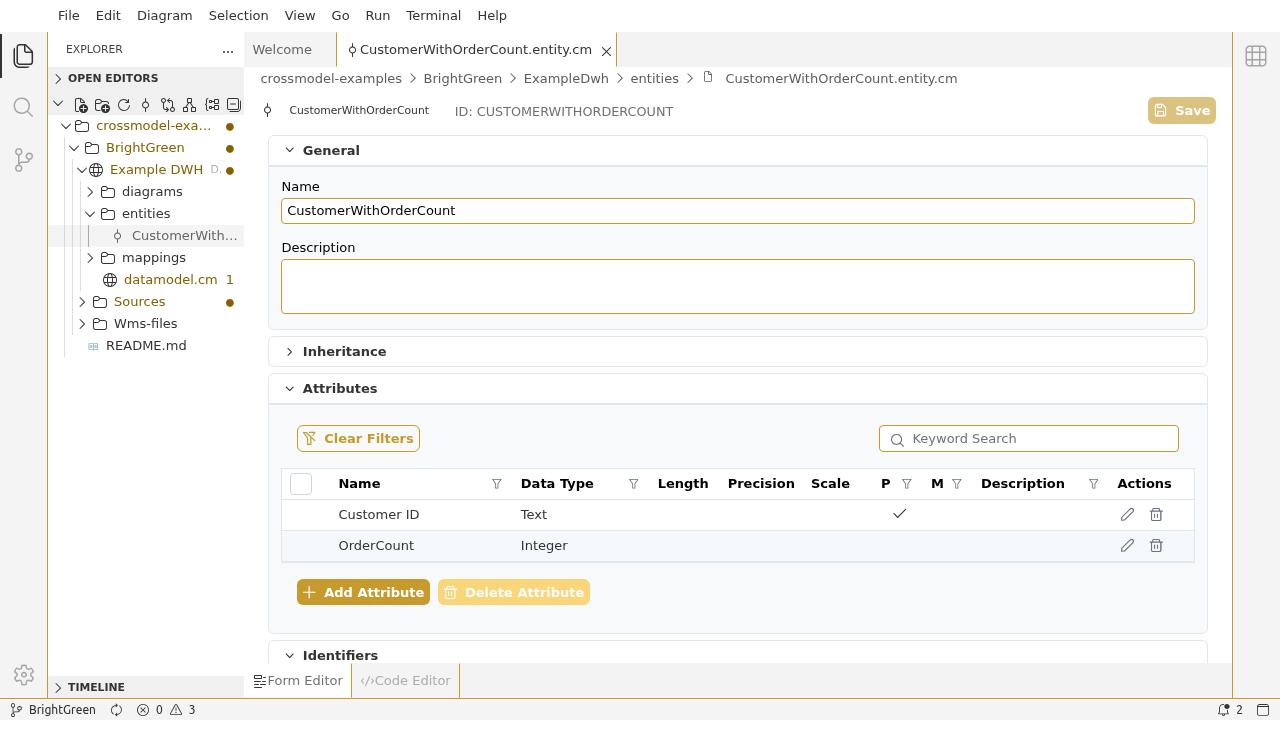
You've just created your first entity in CrossModel.
Step 6: Explore the editing perspectives
CrossModel offers three ways to view and edit the same model element. With your Customer entity open, try switching between them:
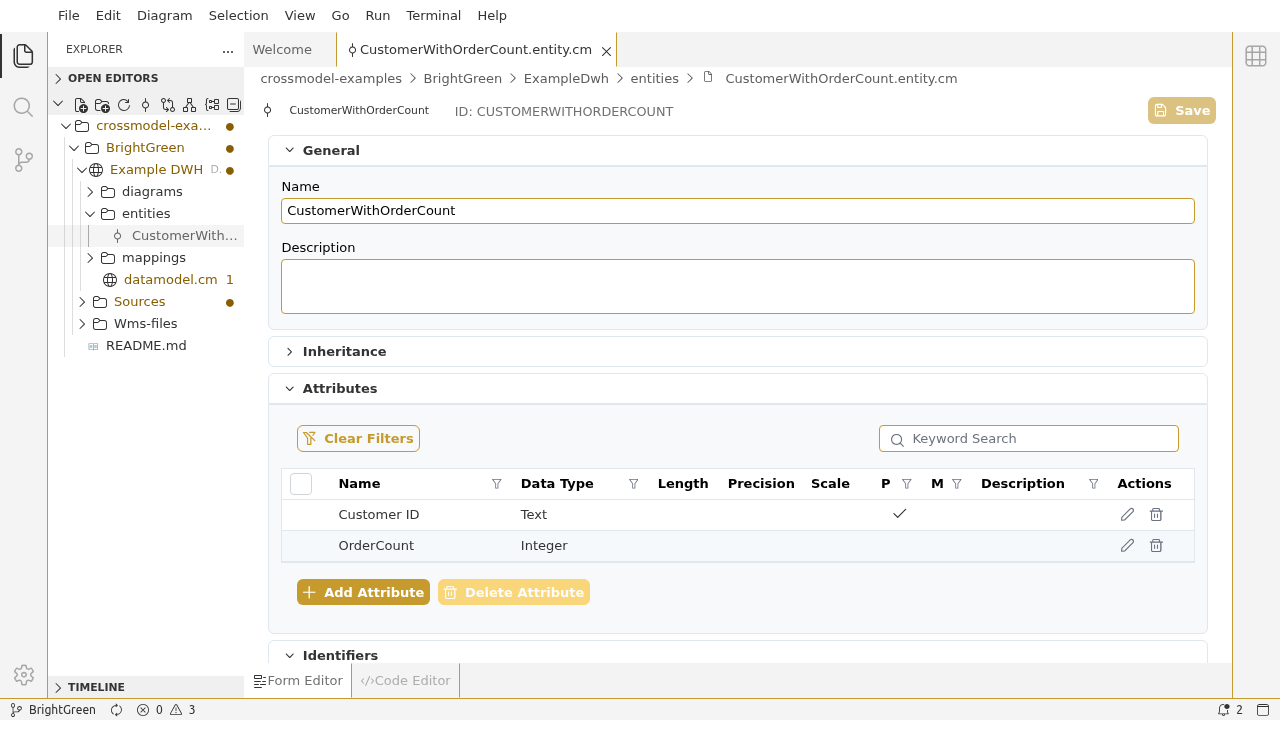
- Form editor - The structured view you just used, with labeled fields for each property.
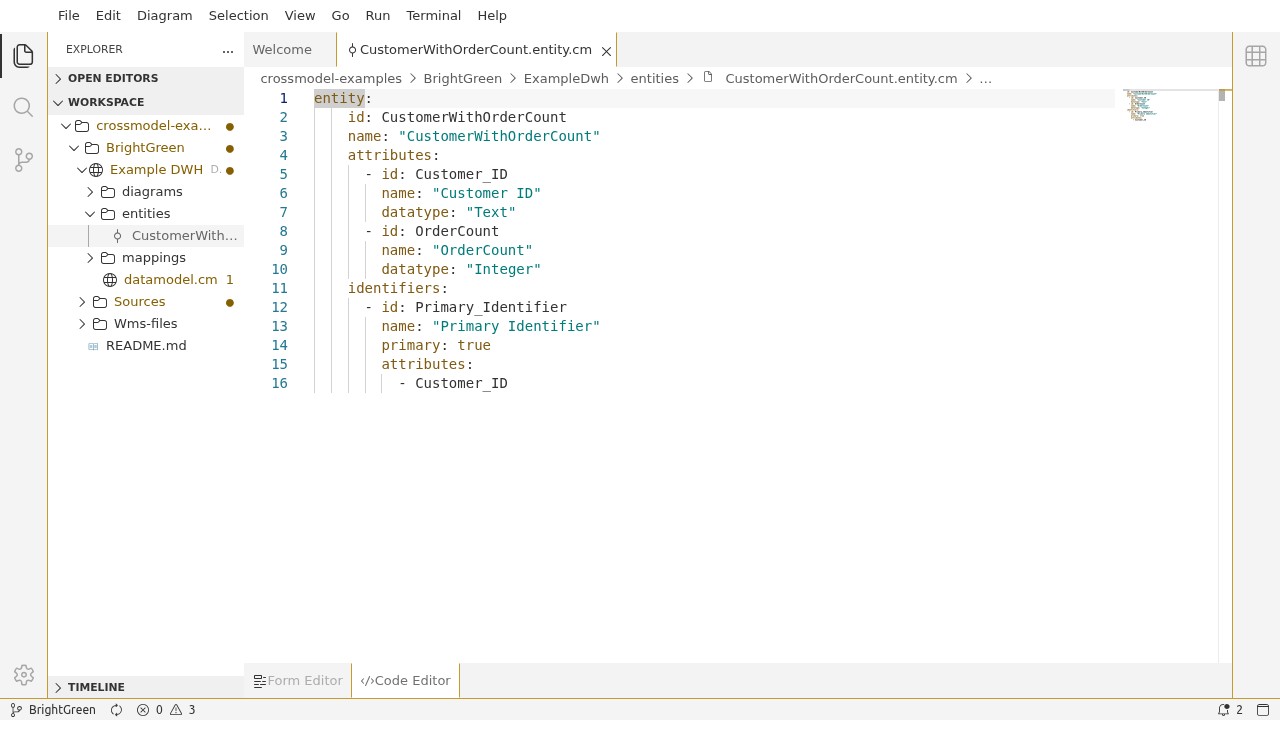
- Code editor - A text-based view showing the entity in YAML format. You can edit the YAML directly and switch back to the form to see your changes reflected.
- Diagram - A visual canvas where entities are displayed as boxes with their attributes, connected by relationship lines.
All three perspectives are always in sync - a change in one is immediately reflected in the others.
What's next?
You now have a CrossModel workspace with a data model and an entity. Here's where to go from here:
- CrossModel Basics - Learn about the user interface, workspaces, diagrams, and other core features.
- Datamodeling Fundamentals - Follow a comprehensive tutorial that walks you through building a complete data model with entities, relationships, and diagrams using a realistic scenario.
- Glossary - Look up any unfamiliar terms.