Creating a mapping with multiple sources
Model integration logic using mappings with multiple sources
Now that we have created basic mappings and extended them with expressions it is time to see how we can add multiple sources to a mapping.
To demonstrate this, we'll extend the ExampleDWH model with a new Product entity that is sourced from JuiceERP.
Create a new entity
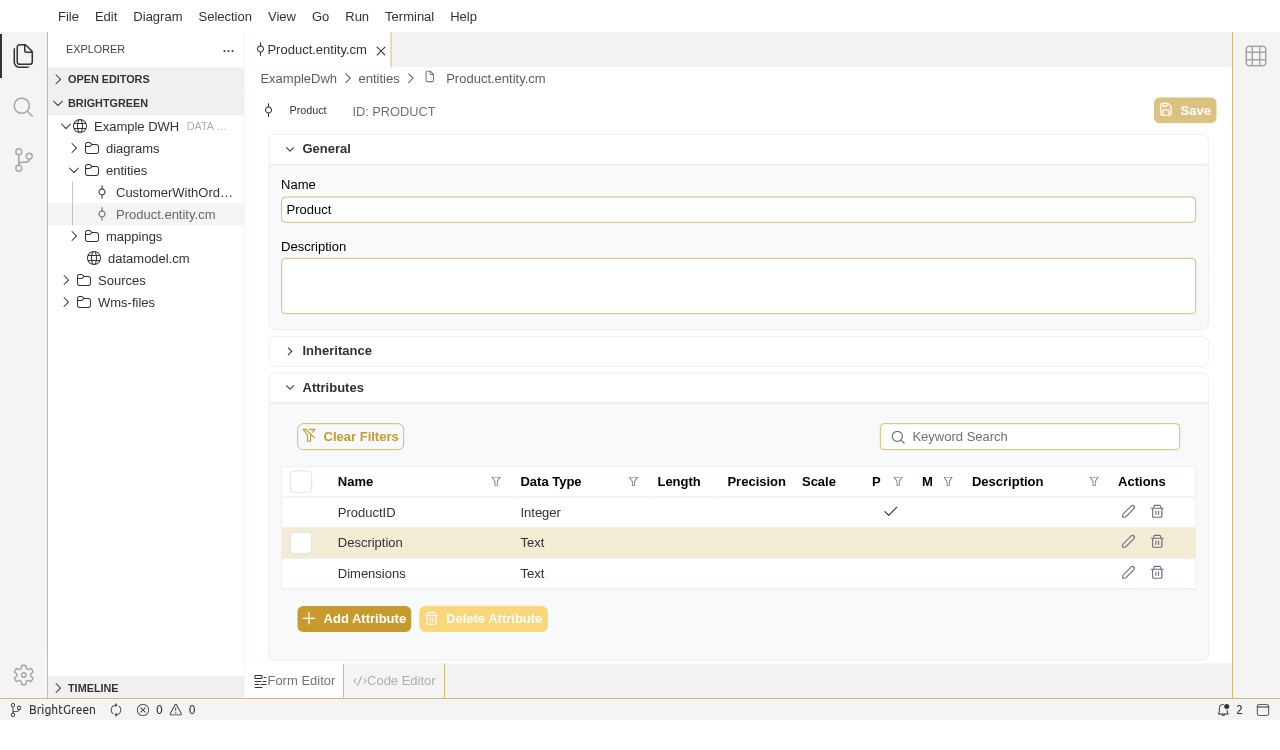
Open the ExampleDWH model and create a new entity Product. Add the following attributes: ProductID (Intger), Description (Text) and Dimensions (Text).
Create a multi-sourced mapping
This time we'll create the mapping by right clicking on the Product in the explorer and select "Derive mapping...". Provide a suitable name and hit OK. In the mapping canvas, Add Product entity from JuiceERP as Source objects.
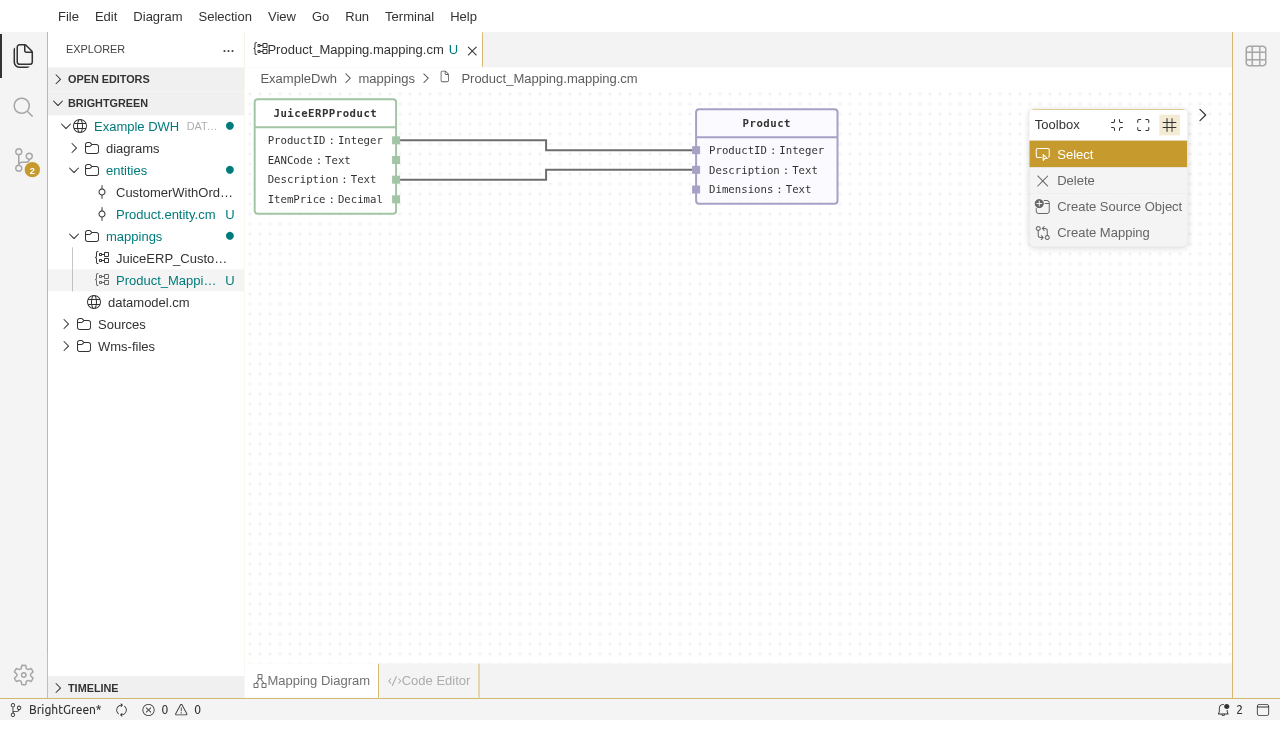
Set the attribute mappings: ProductID and Description from the Juice ERP Product table.
Set the source object dependencies
Now add the PhysicalProduct entity as a source. Add an expression on the Dimensions field, by concatenating WidthInCm, LengthInCM and HeightInCM with a suitable separator. In a mapping that uses more than one source, we need to define how the sources should be related to each other in the context of the mapping. We can define this using the properties panel on the Source Objects. Click the PhysicalProduct source object, open the properties panel and set the join type to Left join. Add a condition to relate both tables on the ProductID column.
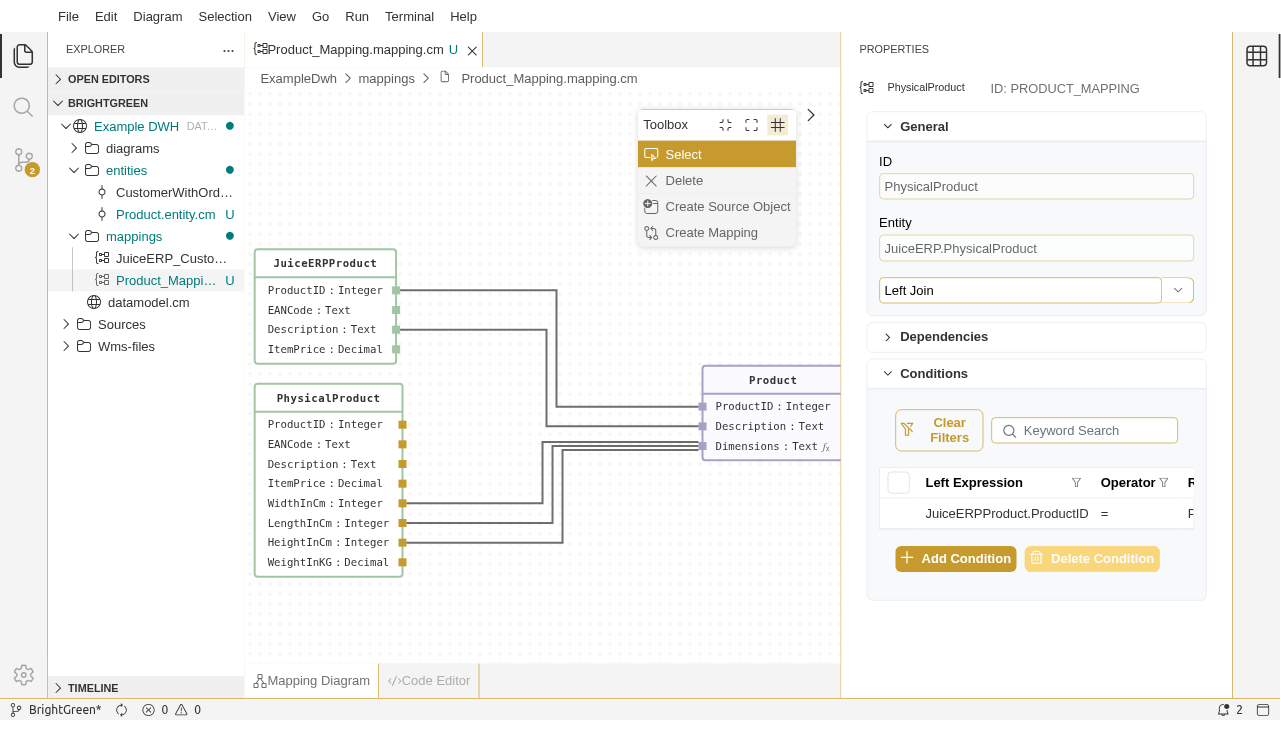
We have created a complete, multi-sourced mapping.