Configure and use the AI assistants
Learn how to use AI to accelerate your data modeling process
In the previous exercise we have created a logical data model using the basic features of CrossModel. In this exercise we'll use the AI modeling assistant to explore other options for creating data models.
Setting up the AI modeling assistant
For using the AI modeling assistant it is necessary to enable AI support and supply an API token for a LLM. To do this, go to the menu File → Preferences → Settings.
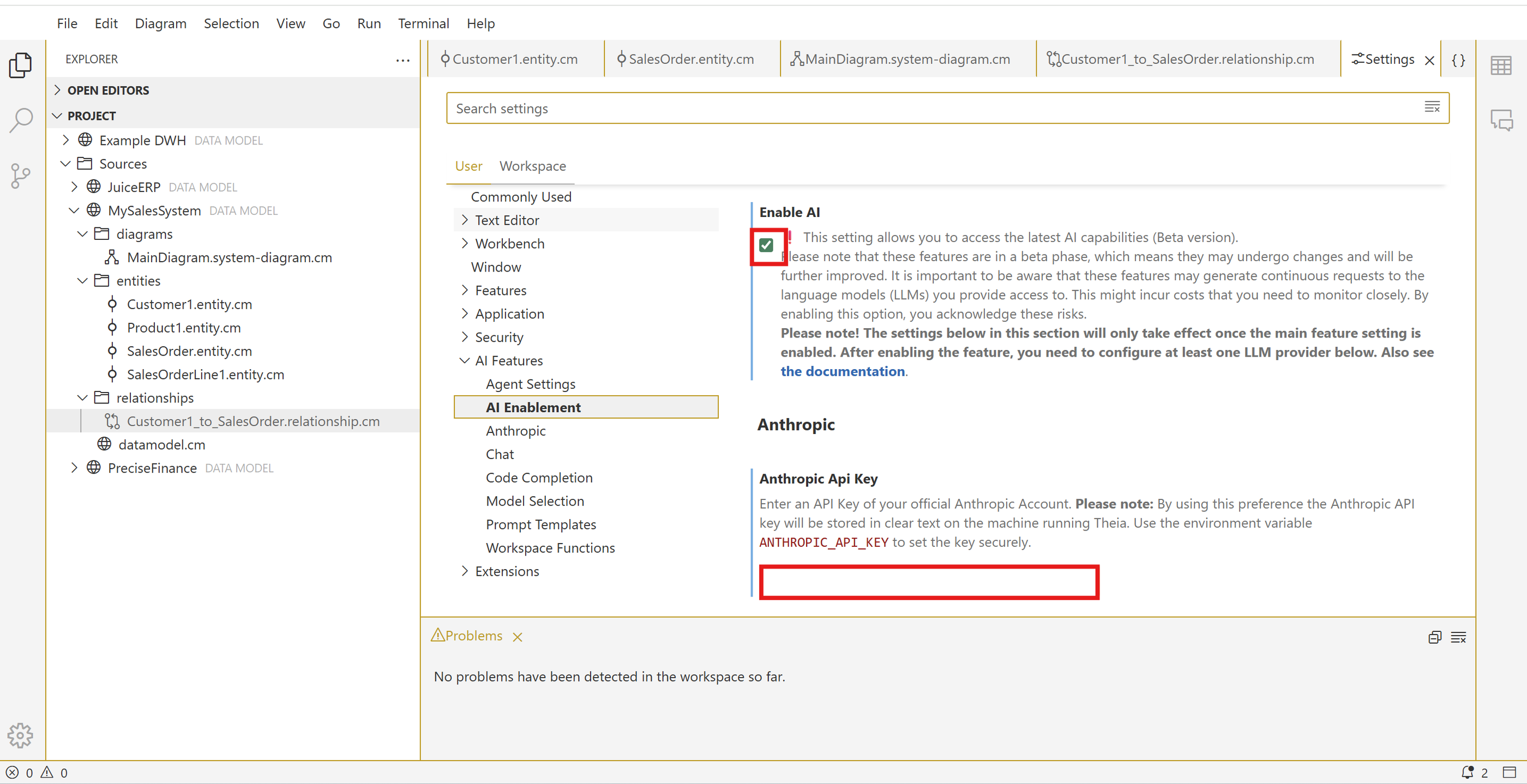
After activating AI and providing your LLM API token you can activate the AI chat via menu View → AI chat.
Let's see if everything works by entering the following prompt:
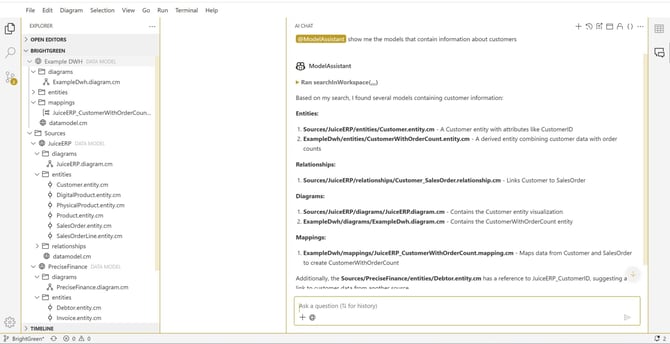
@ModelAssistant Show me the models that contain information about customers
After processing is complete you should have an output that looks like this:
Reverse engineer the WMS data model from DDL
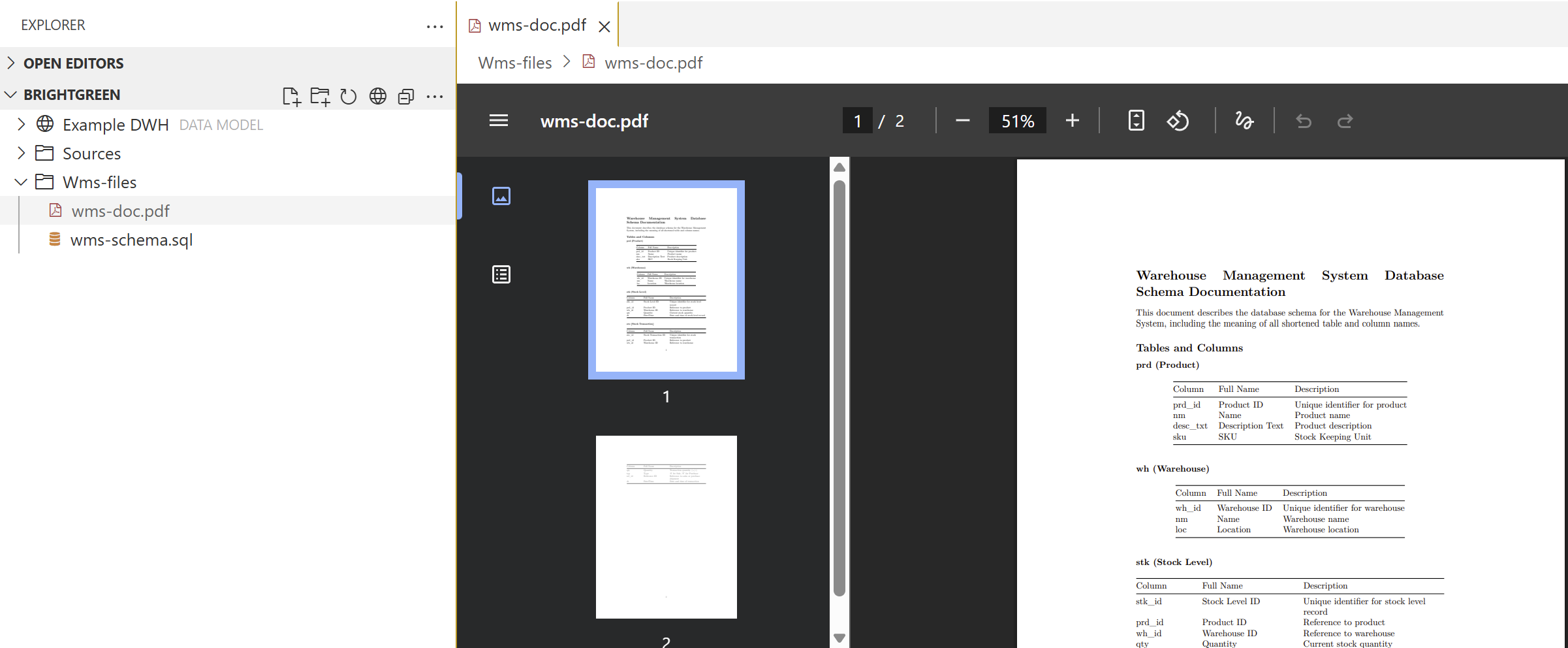
BrightGreen decides to implement a Warehouse Management System (WMS) to administer physical goods movements. To create a logical data model from this new system, the developer has provided you with a DDL file and a PDF with a description of the data data model. Since manually reverse engineering this into a data model is tedious, you decide to reverse engineer the DDL and documentation using the AI modeling assistant of CrossModel.
The files can be found in the Wms-files folder in the workspace. Have a look at the DDL and the PDF file if you want to read the documentation before proceeding.
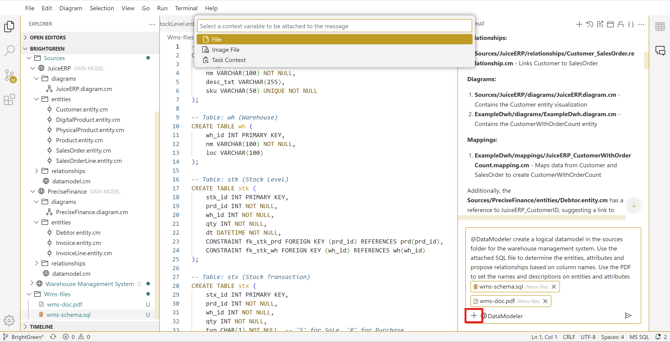
Open the AI-chat and enter the following prompt:
@DataModeler Create a logical data model in the sources folder for the
warehouse management system. Use the attached SQL file to determine the
entities, attributes and propose relationships based on column names.
Use the PDF to set the names and descriptions on entities and attributes
Also attach the DDL and PDF file found in the Wms-files folder to the chat, either by clicking the + sign and choosing Image File or by dragging the files in the input area of the AI-chat window.
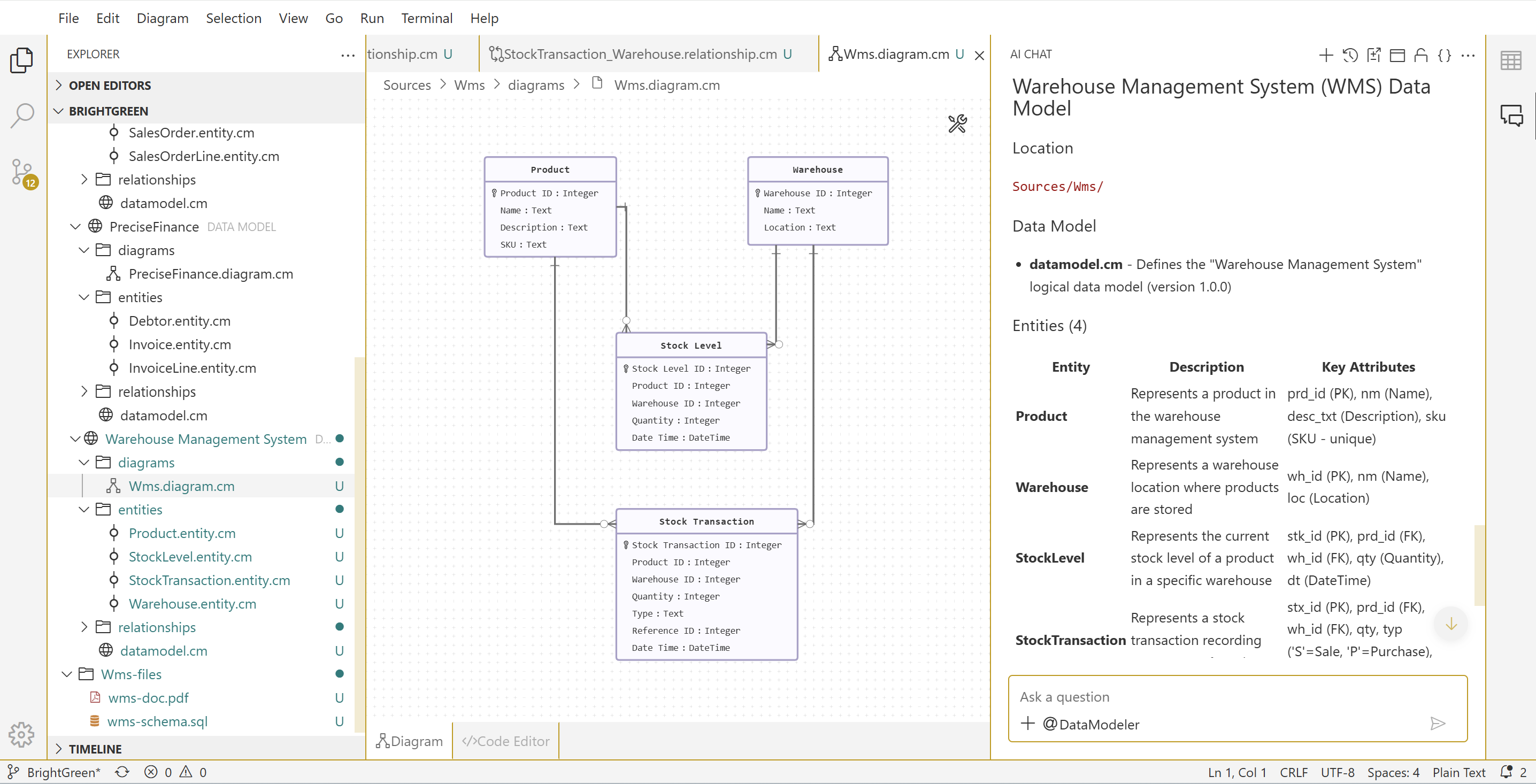
The DataModeler AI agent will need a some time to process this request. After it completes the task, inspect the result. Notice the modeling assistant has created entities, inferred relationships and also created a diagram. The information from both the DDL file and the PDF containing the documentation is used to create the data model.
Wrapup
In this exercise we have learned how to setup AI assistance, use the ModelAssistant to ask questions about our modeling workspace and experienced how to use the DataModeler assistant to have AI support in reverse engineering a data model. In the next exercise we will explore the CrossModel features to specify data lineage between models.