Add expressions to a mapping
Learn how to extend a mapping with logic by using expressions
Now that we have created a basic mapping in the previous tutorial, we'll explore how to use expressions to model business logic.
Create a simple expression
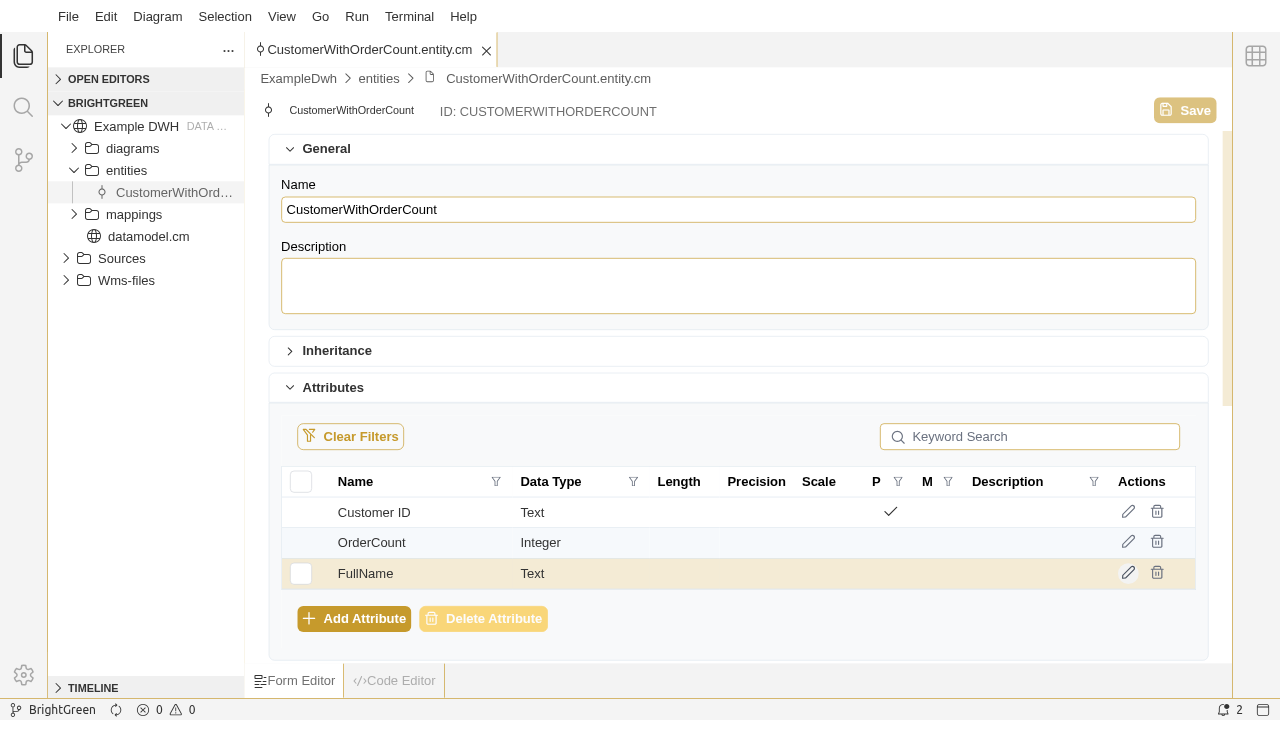
We'll use the existing ExampleDWH model and create a new attribute mapping using an expression. We'll extend the existing CustomerWithOrderCount entity and add the full name of a customer in a new attribute called FullName. We start by adding a new attributes to the customer entity in the ExampleDWH model:
Now let's open up the mapping canvas, notice the new attribute FullName is already visible.
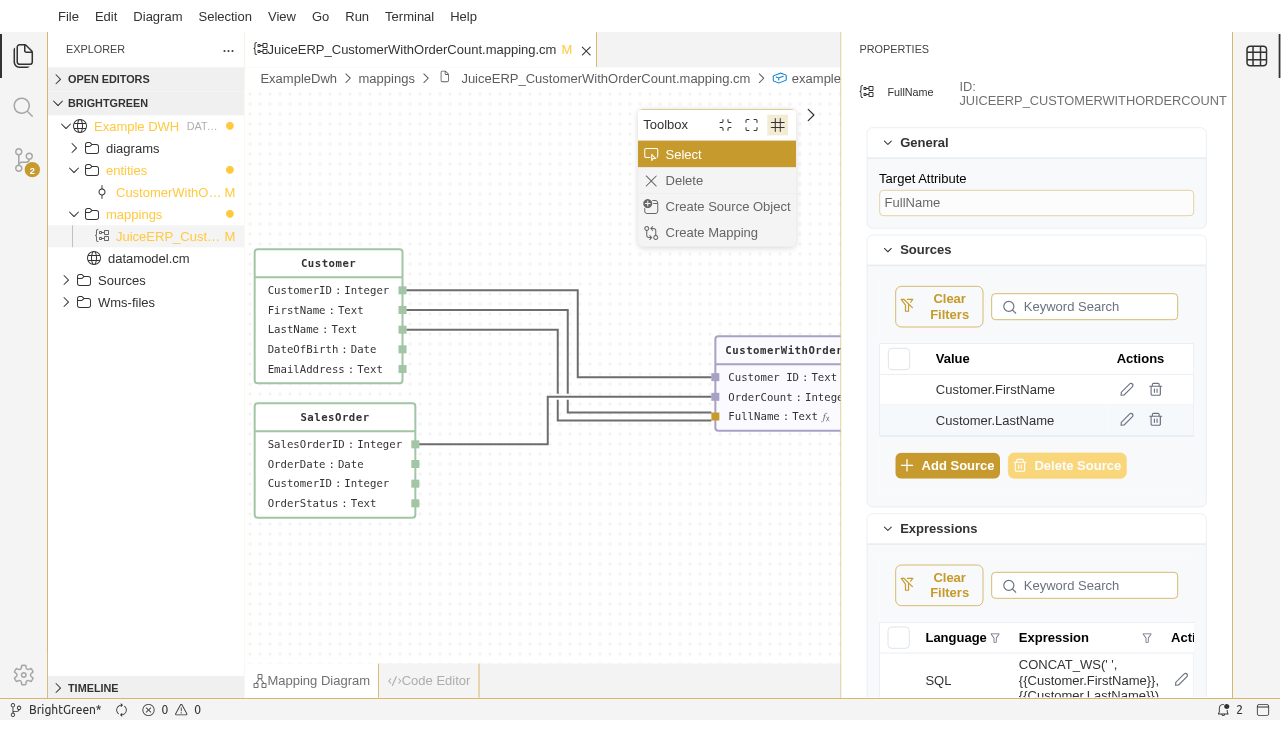
Select create mapping in the toolbox and drag the FirstName and LastName from the Customer source object to the FullName attribute in the Customer target object. Now open the properties panel and add a SQL expression with the following expression
CONCAT_WS(' ',{{CustomerSourceObject.FirstName}},{{CustomerSourceObject.LastName}})
Note :
when referencing source attributes in an expression, make sure to enclose them in double brackets so CrossModel can evaluate them properly.
Notice that both input fields are set under sources in the property panel. Also notice that in the mapping canvas, target attributes that are mapped with an expression are marked with fx
In the next tutorial we'll see how to add multiple source objects to a mapping, making it possible to model mappings that contain integration logic.