
Now that we have familiarized ourselves with modeling structure and using the AI capabilities of CrossModel, it is time to explore the mapping feature to extend models with lineage or data flow.
Create a datawarehouse model with model dependencies
We start with creating a new logical data model like we did before. This time we also include dependencies to the other two models in the workspace:

Create a entity
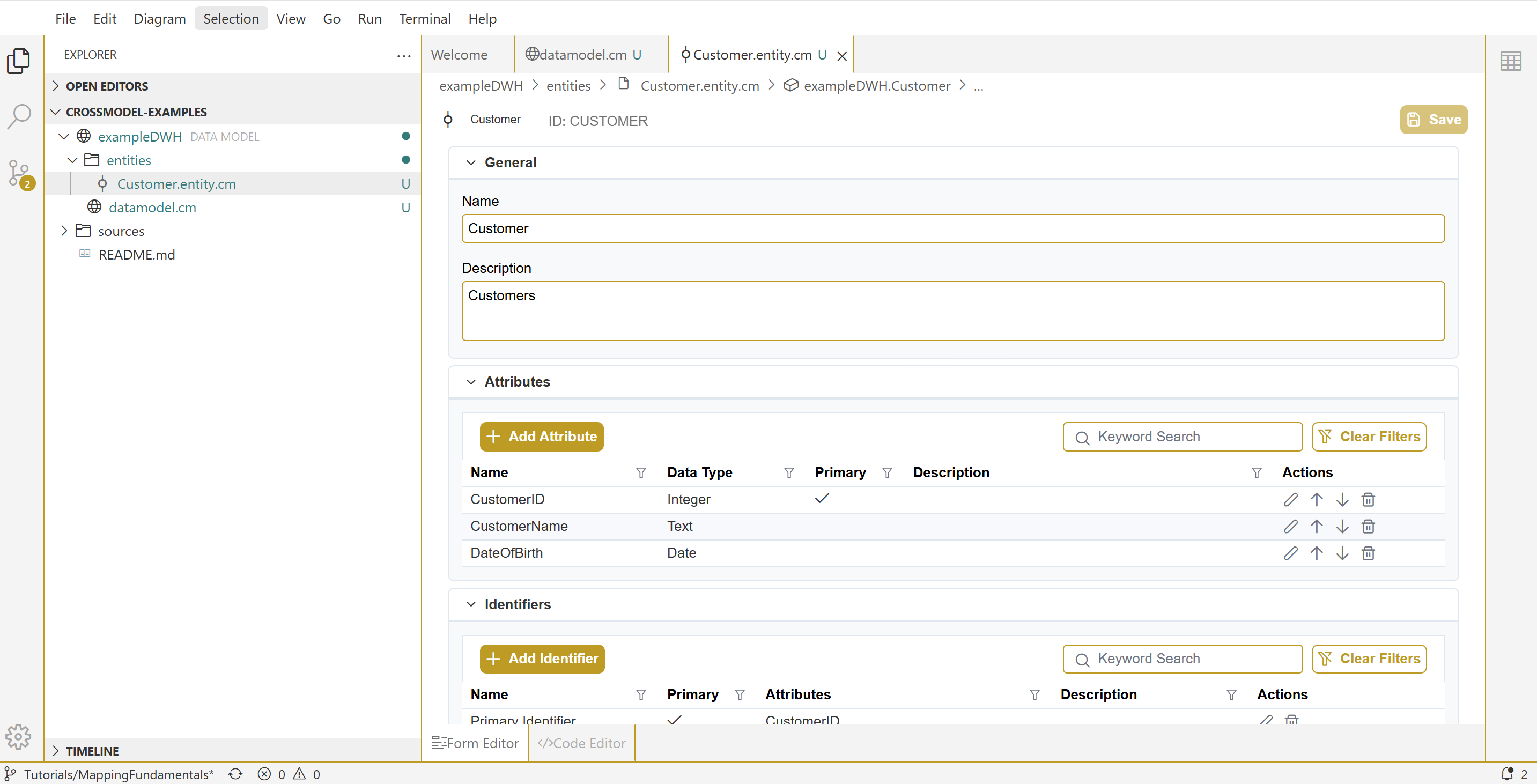
Let's create our first entity in the Datawarehouse; the Customer entity. We'll start with a one to one mapping on the Customer entity from our SimpleSalesSystem.
First we create the entity with all relevant attributes, for our DWH scenario we don't need the email address so we'll leave that out:
Add a mapping
Now we can create a mapping for our newly created entity by either:
- Right clicking on the Customer entity in the explorer bar and select Derive mapping...
- Create a new mapping via the button in the navigator
- Create a new mapping via the File -> New element menu
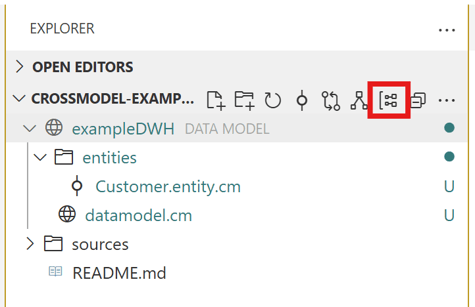
We 'll use the second option for now, select the ExampleDWH model in the explorer and press the new mapping button:
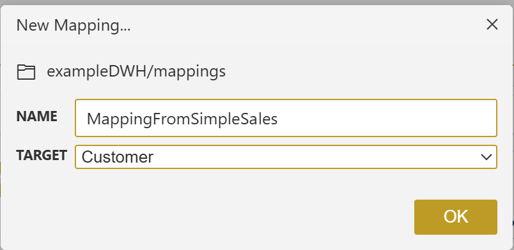
Now we supply a name for the mapping and select the target entity:
Add sources and attribute lineage
In the mapping canvas, we add the appropriate source entity Customer from the MySimpleSalesSystem. This can be done by dragging the entity from the explorer or adding it via the toolbox (Create source object)
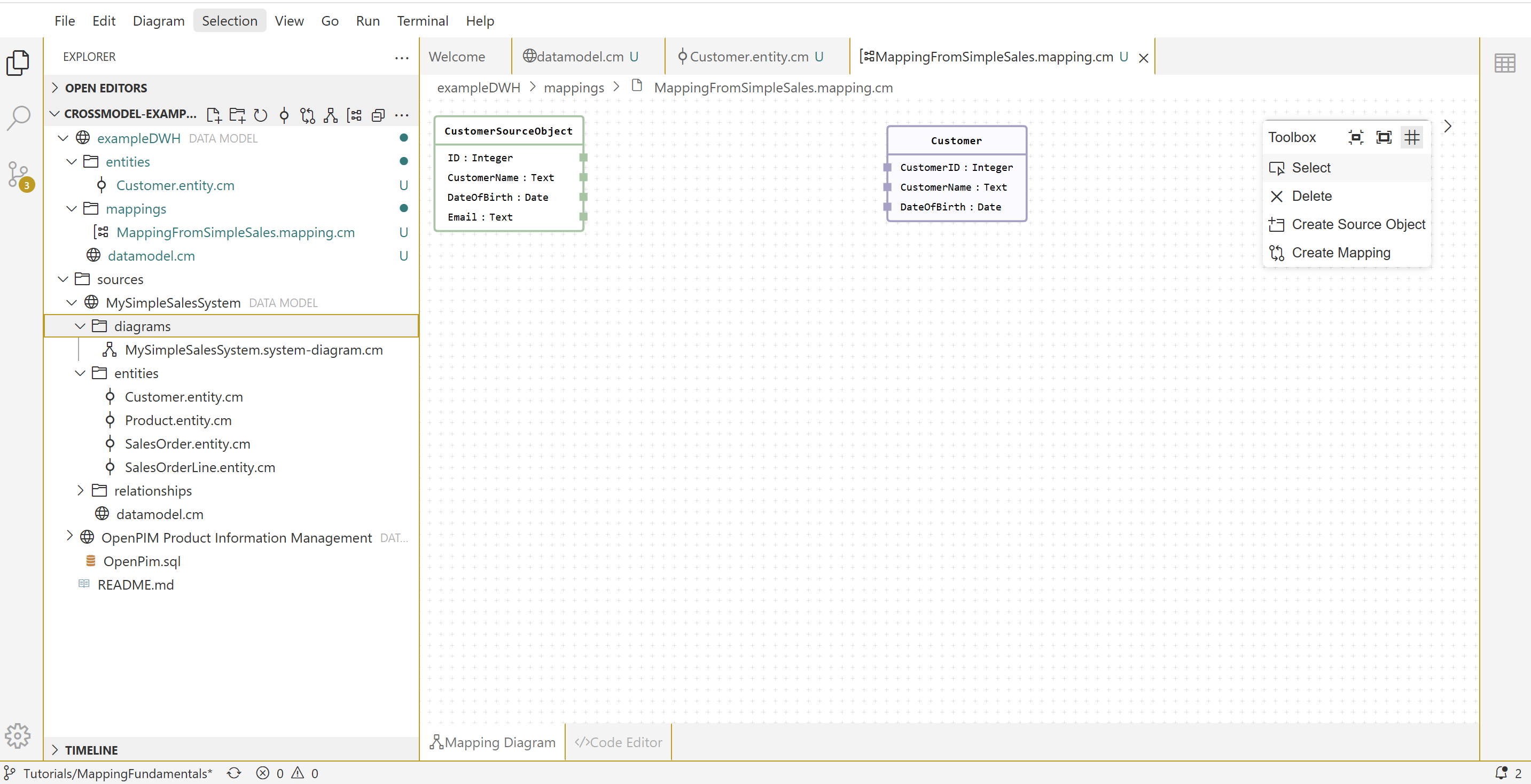
Now select the Create Mapping action in the toolbox and connect the relevant source and target attributes by dragging lines between their connectors.
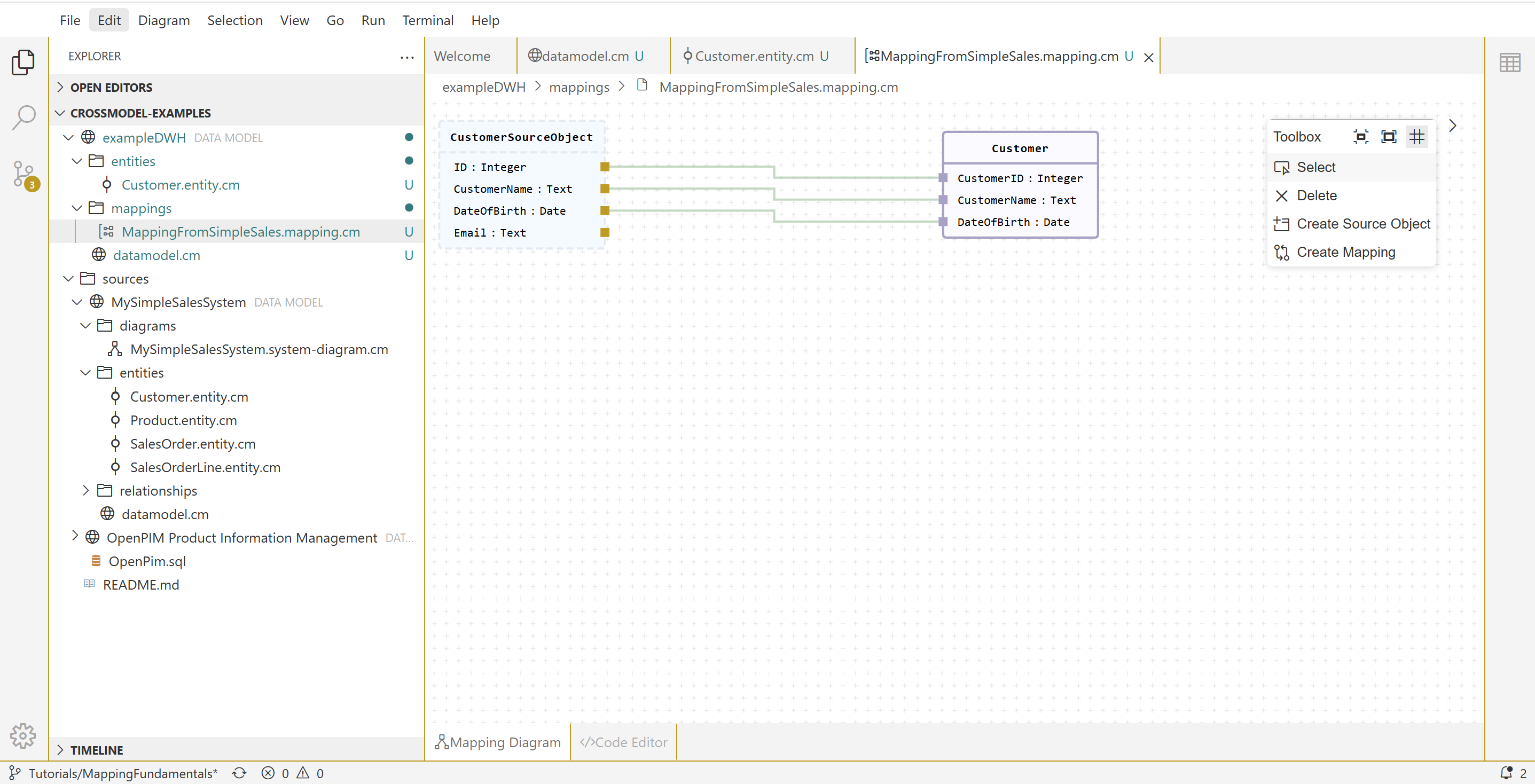
That's it!
We have created a first one on one mapping where we define the lineage between entities in different systems on attribute level. In subsequent exercises we'll extend a mapping with logic and we'll create a mapping that uses multiple sources.