
In the previous exercise we have created a logical datamodel using the basic features of CrossModel. In this exercise we'll use the AI modeling assistant to explore other options for creating data models.
Setting up the AI modeling assistant
For using the AI modeling assistant it is necessary to enable AI support and supply an API token for a LLM. To do this, go to the menu File → Preferences → Settings.
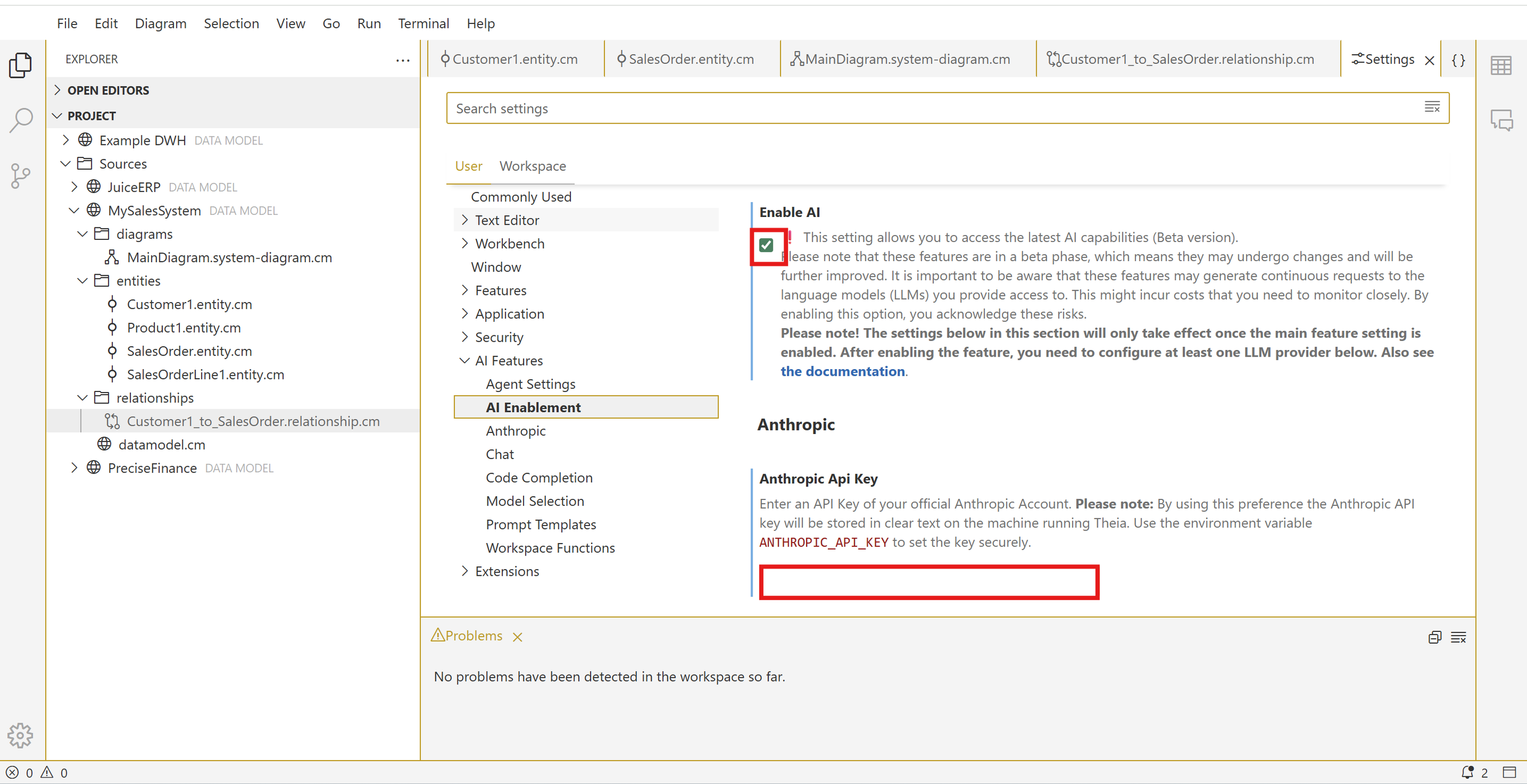
After activating AI and providing your LLM API token you can activate the AI chat via menu View → AI chat.
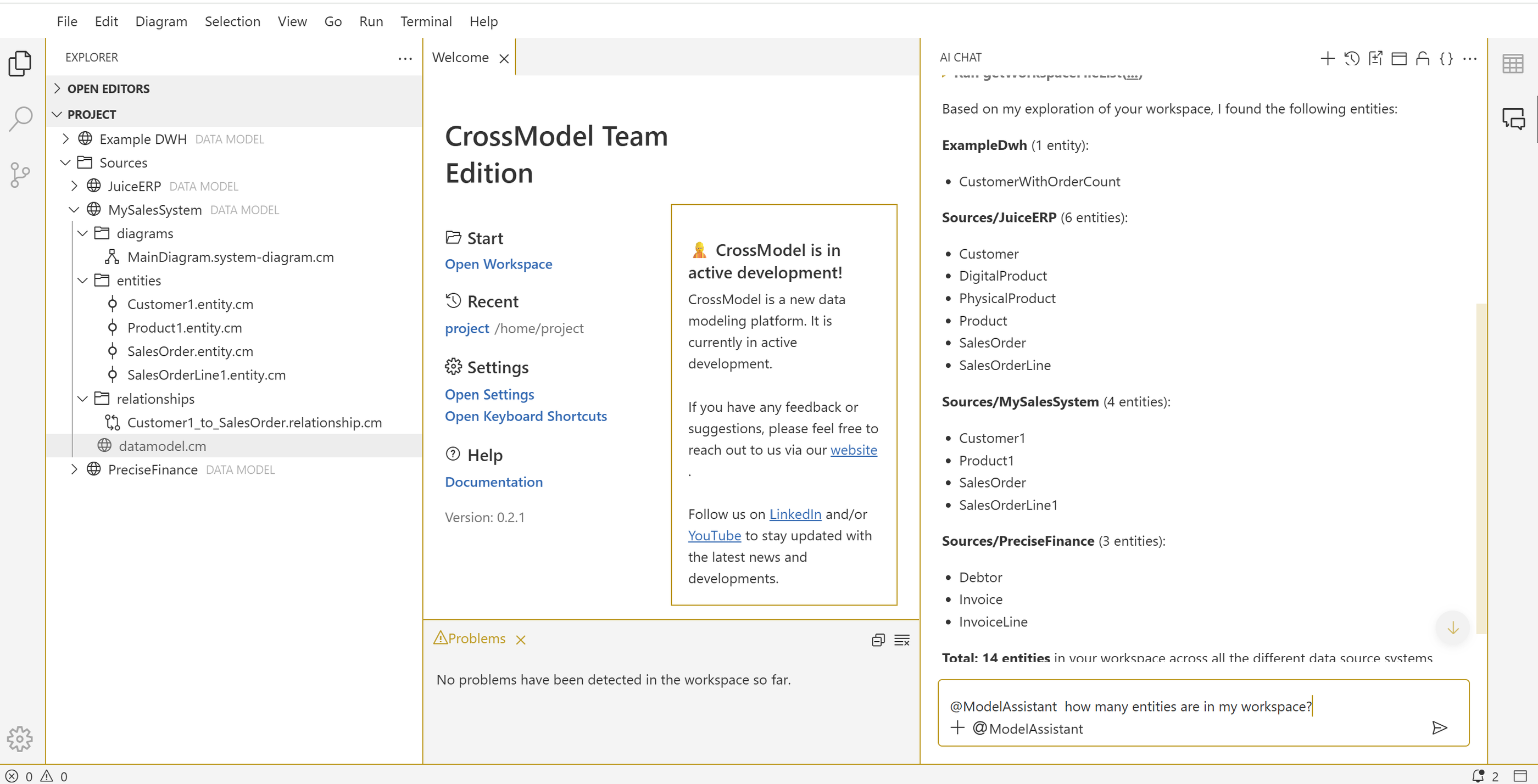
Let's see if everything works by entering the following prompt:
@ModelAssistant how many entities are in my workspace?
After processing is complete you should have an output that looks like this:
Reverse engineer the PIM data model from DDL
BrightGreen uses OpenPim, an open source PIM application to manage their master product data. Since this is an open source application that has an accessible datamodel, you decide to reverse engineer the DDL using the AI modeling assistant of CrossModel.
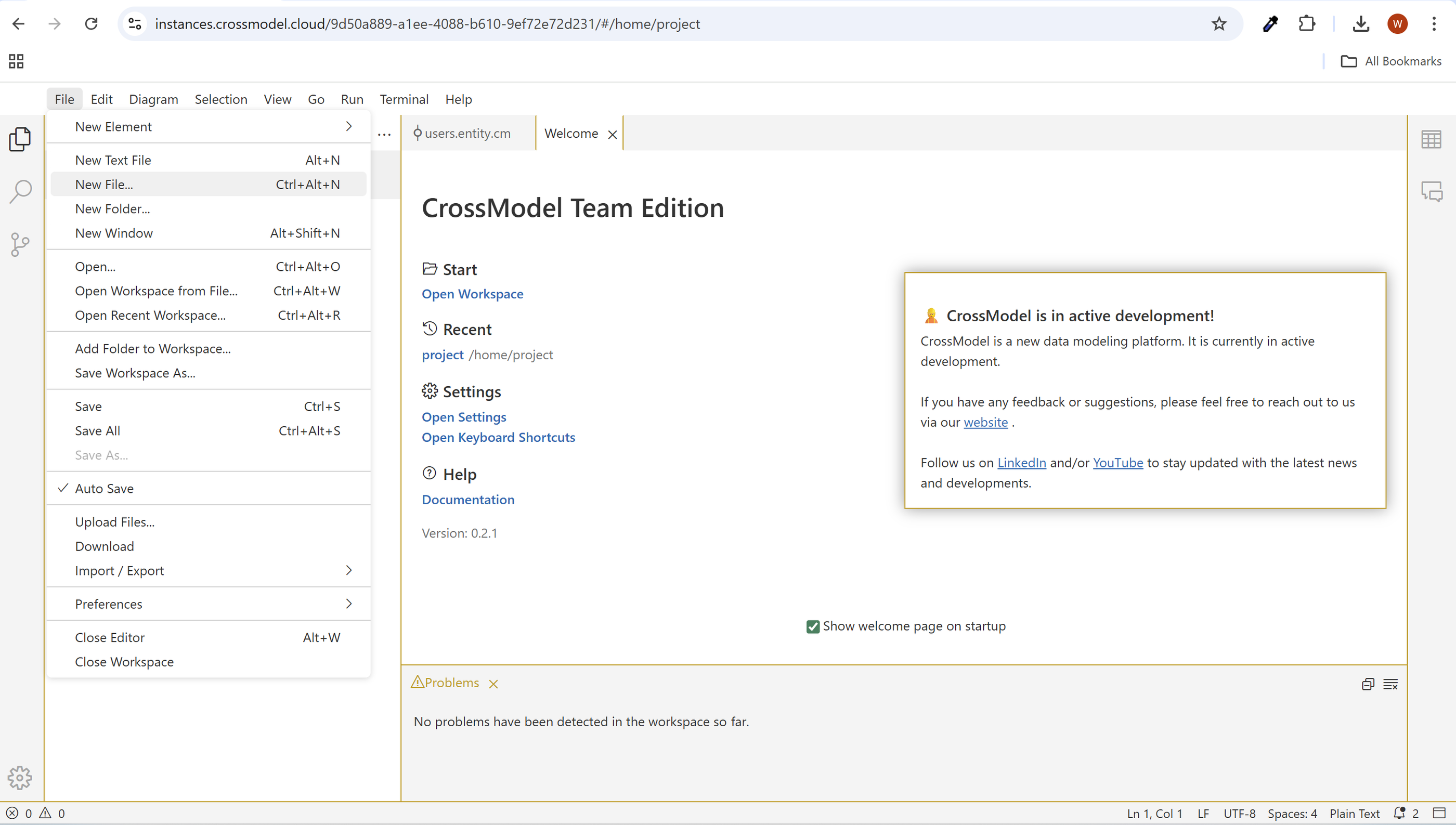
The first step is to create a new file in CrossModel and paste the contents of the datamodel sql referenced in the url above into it:
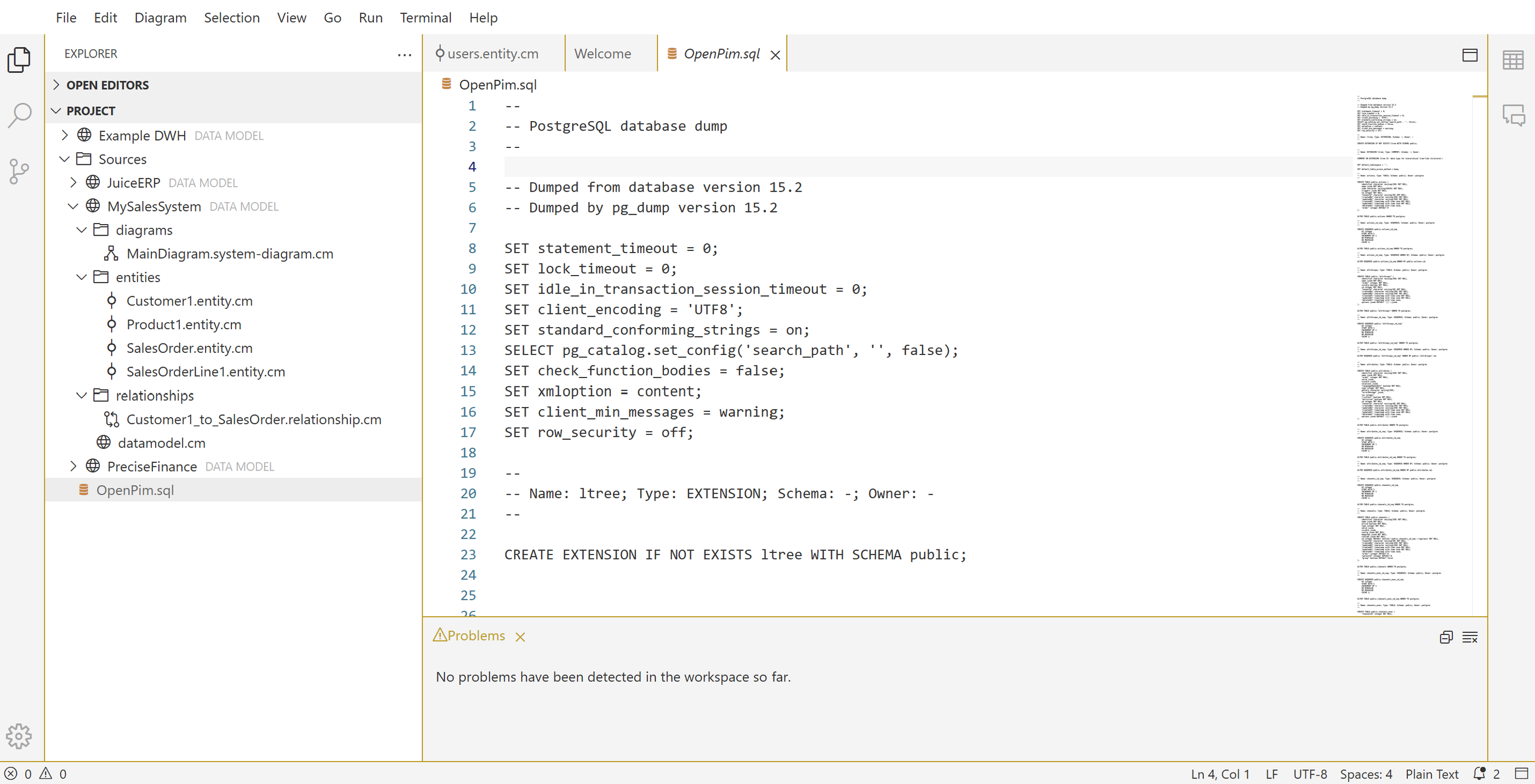
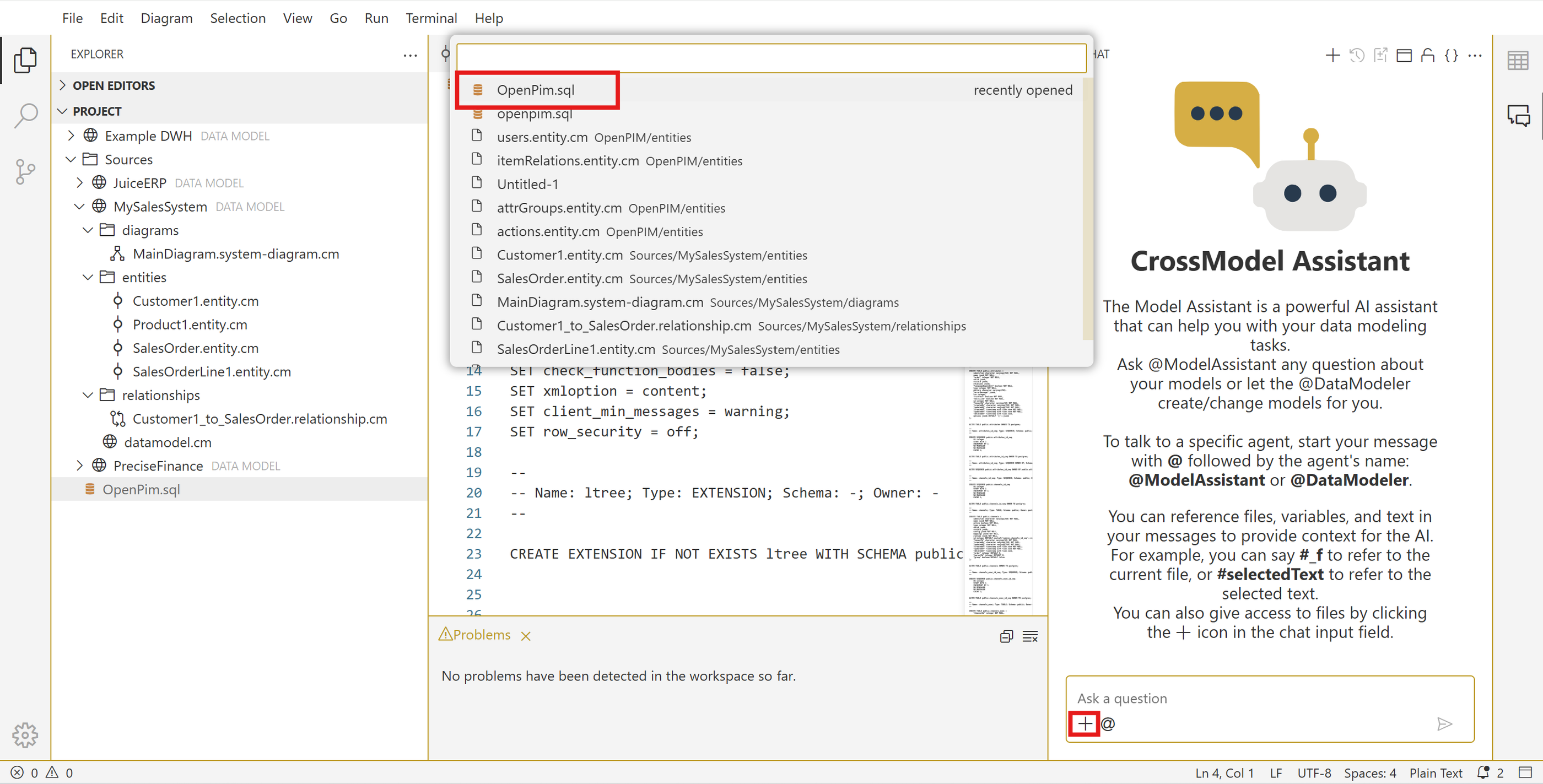
Now open the AI chat and enter the following prompt, also attach the sql file you just created as context to the chat:
@DataModeler Create a new logical datamodel based on the attached OpenPim.sql
file. Make sure that you translate the data types to logical data types,
so for example, character varying becomes text and timestamp with timezone
becomes date & time. When you find columns or tables named name, id, mappings,
attributes or identifier, prefix the name with ^ because these are reserved
words in our grammar and cannot be used as id for entities or attributes.
Also try to create relationships based on the foreign keys defined in the sql
file.
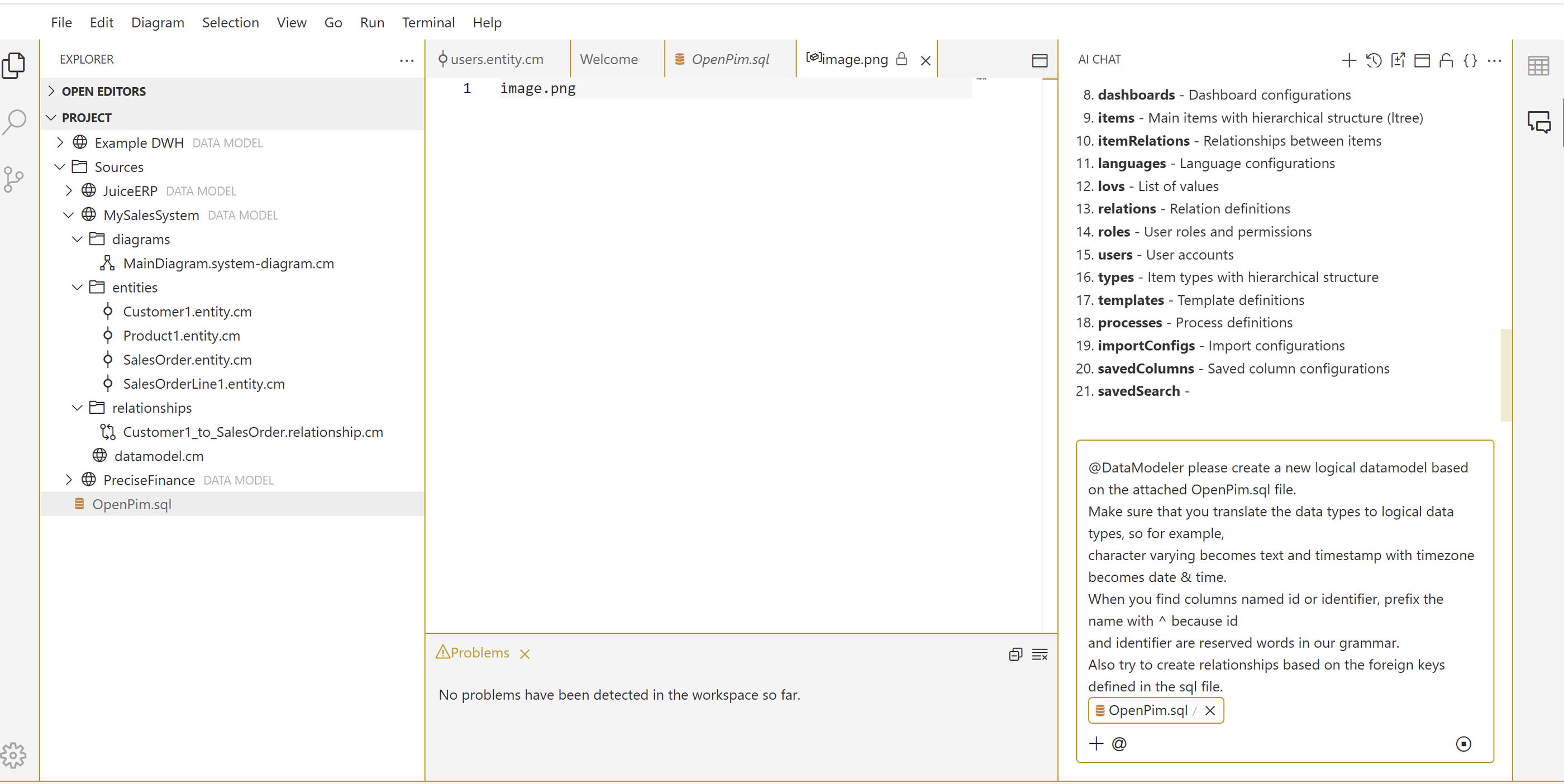
Inspect the result. Notice the modeling assistant has created entities, relationships and also a system diagram. When there are validation errors in the model you can easily fix them in the code perspective.
When opening the diagram, use the menu Diagram → Layout to create a better layout.
Wrapup
In this exercise we have learned how to setup AI assistance, use the ModelAssistant to ask questions about our modeling workspace and experienced how to use the Data modeler Assistant to have AI support in reverse engineering a datamodel. In the next exercise we will explore the CrossModel features to specify data lineage between models.